


How to use our e-service Property tax return, Industrial property
This is a guide on how to use the e-service Property tax return, Industrial property.
Log in to the e-service
1. How to log in to the e-service
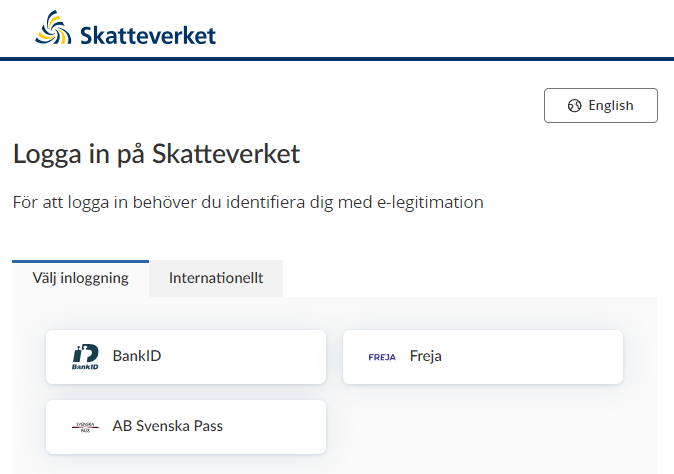
When you have selected the e-service you want to log in to, a login page will open. In the upper part of the view you can change the language to English by clicking the button ”English”. By choosing ”International” you get more alternatives for eIDs you can use to log in to the e-service. Select the login mode that suits you best by clicking it, and then proceed to identify yourself.
2. Ownership and tax assessment units
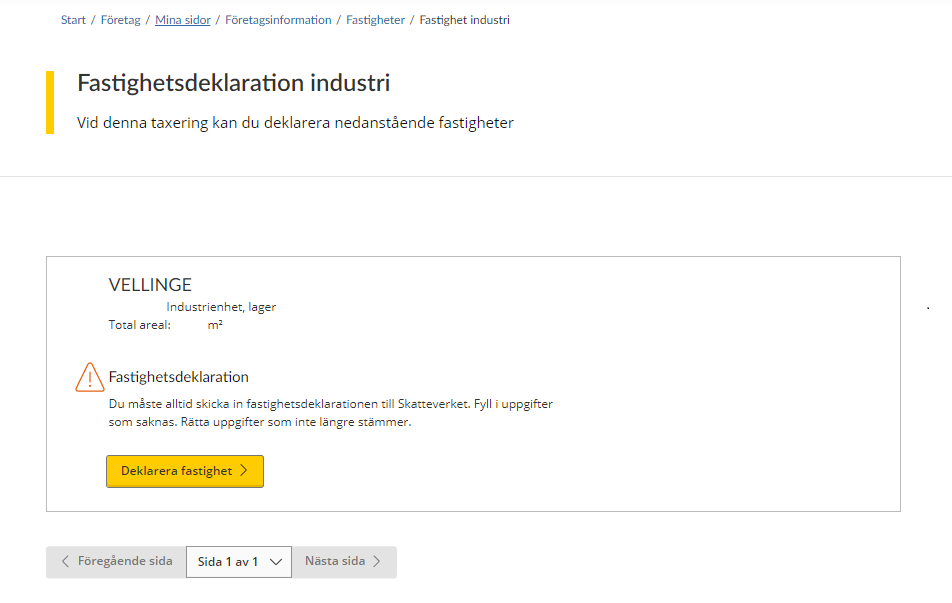
When you have logged in to the e-service, the first page opens and shows you the properties you have to declare for your current property tax assessment.
Each tax assessment unit that must be declared is individually marked in its own box. Details of the tax assessment unit’s property designation, assessment unit number, property type and total area are stated at the top of the box.
If you as the property owner have received a draft of the property’s new assessed value, you have to check that the details are correct. If all the details in the draft are correct, you don’t need to submit anything to the Swedish Tax Agency; your silent approval of the draft is sufficient.
However, if you need to change any of the prefilled details, you must provide the Swedish Tax Agency with the relevant details.
If you as the property owner have received a property tax return, you need to provide the Swedish Tax Agency with information about your property, and submit the tax return to us.
“File property tax return” button – This is the button you click in order to change the details in the draft of the property’s new assessed value you have been sent, or to file a tax return for your property. To proceed with providing information about your property, click the button marked “Deklarera fastighet” (“File property tax return”).
You will be directed to various pages within the e-service, depending on which information you need to provide.
If you wish to move between different pages in the e-service, click the button marked “Nästa sida” (“Next page”) to move forward, or the button marked “Föregående sida” (“Previous page”) to go back.
Pagination is used so that a certain number of properties are shown on each page. You can therefore use the drop-down menu on the button marked “Sida x av x” (“Page x of x”) if you want to go straight to a specific page.
3. File a property tax return
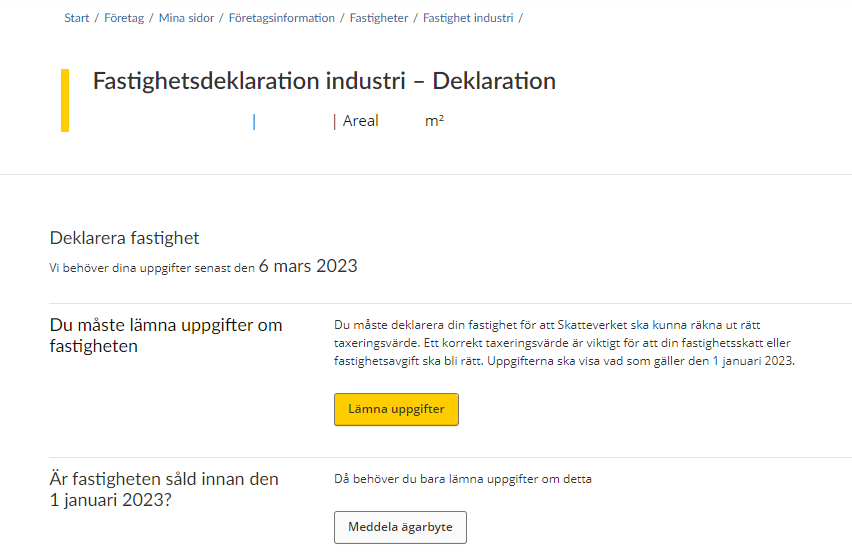
If you have chosen to file a property tax return for a tax assessment unit, you will be directed to the next page in the e-service. Here, you will be informed that you need to submit information to us before the submission deadline..
You need to provide information about the property in order for the Swedish Tax Agency to be able to calculate the correct assessment value.
You do this by clicking the button “Lämna uppgifter” (“Submit information”).
If the property was sold before 1 January the year of assessment, you instead just need to notify the Swedish Tax Agency of the sale. You do this by clicking the button “Meddela ägarbyte” (“Submit change of ownership notification”). (See section 3.7)
3.1 Overview of value units for taxation
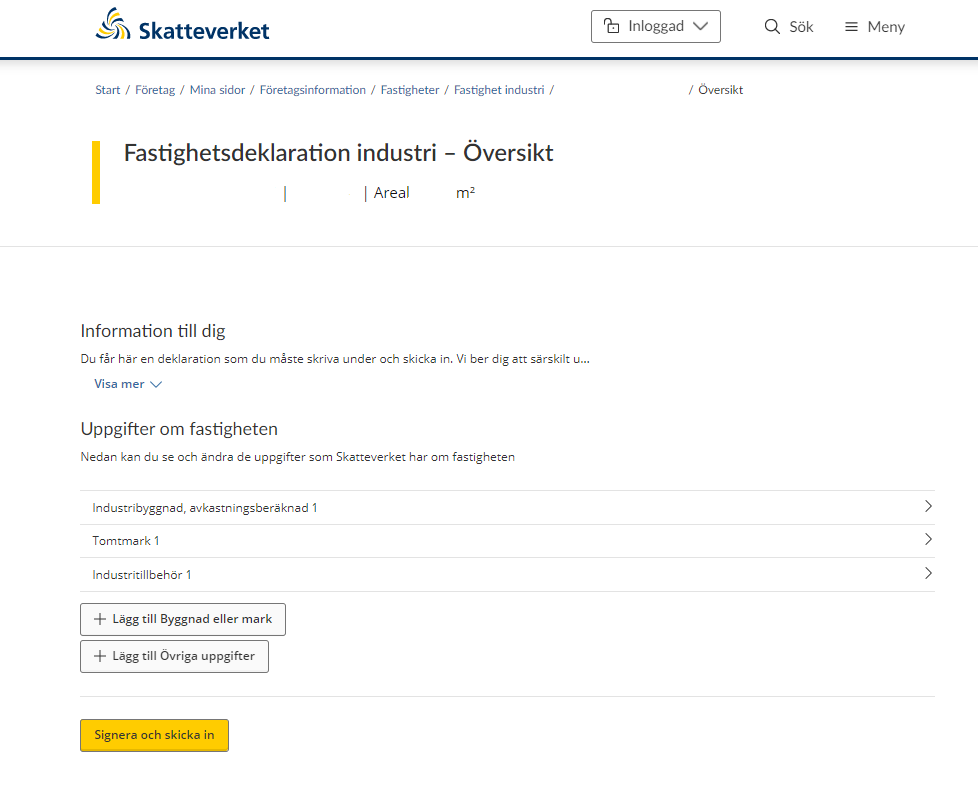
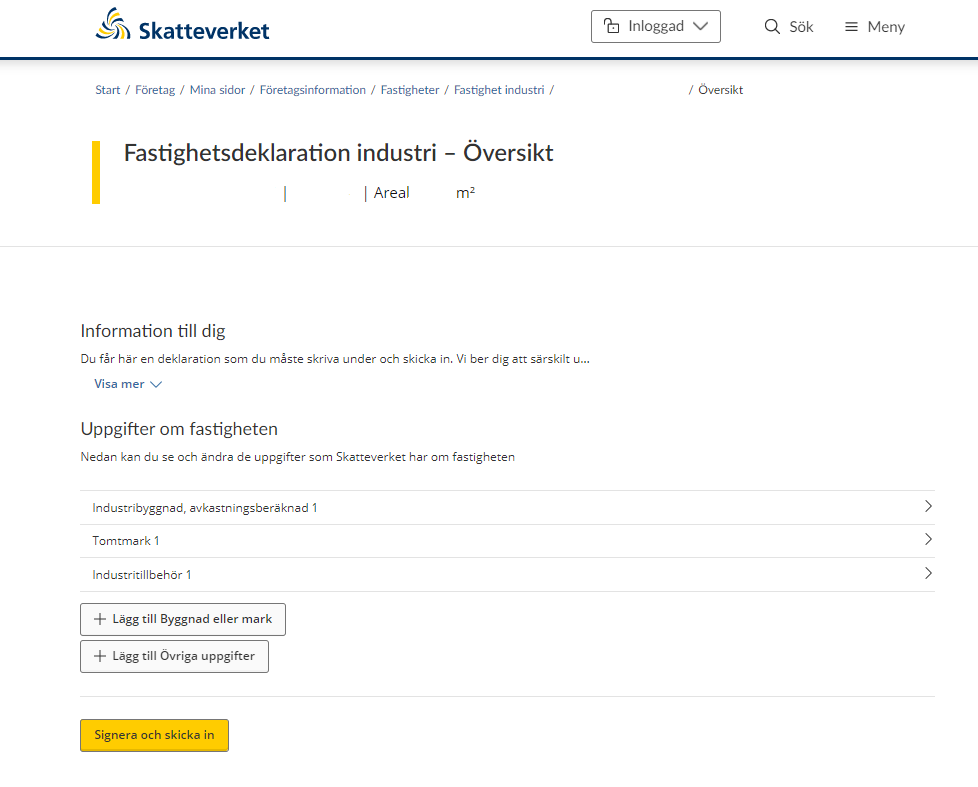
If you have chosen to provide us with information about a tax assessment unit, you will be directed to page that provides an overview of all your land and buildings. If you click on a plot of land or a building, a page will open up, showing you all the information that the Swedish Tax Agency has about that value unit for taxation.
If the list does not include all value units for taxation, you can add a value unit yourself by clicking on the button “Lägg till Byggnad eller mark” (“Add building or plot of land”). (See section 3.3)
If you want to submit a piece of information to the Swedish Tax Agency, you can click on the button marked “Lägg till Övriga uppgifter” (“Add further details”). You will then be directed to a free text field where you can enter the relevant details. (See section 3.6)
3.2 Submit information
In this section of the e-service you can provide information regarding plot of land, buildings and equipment.
3.2.1 Plot of land
Note that information marked * is required.
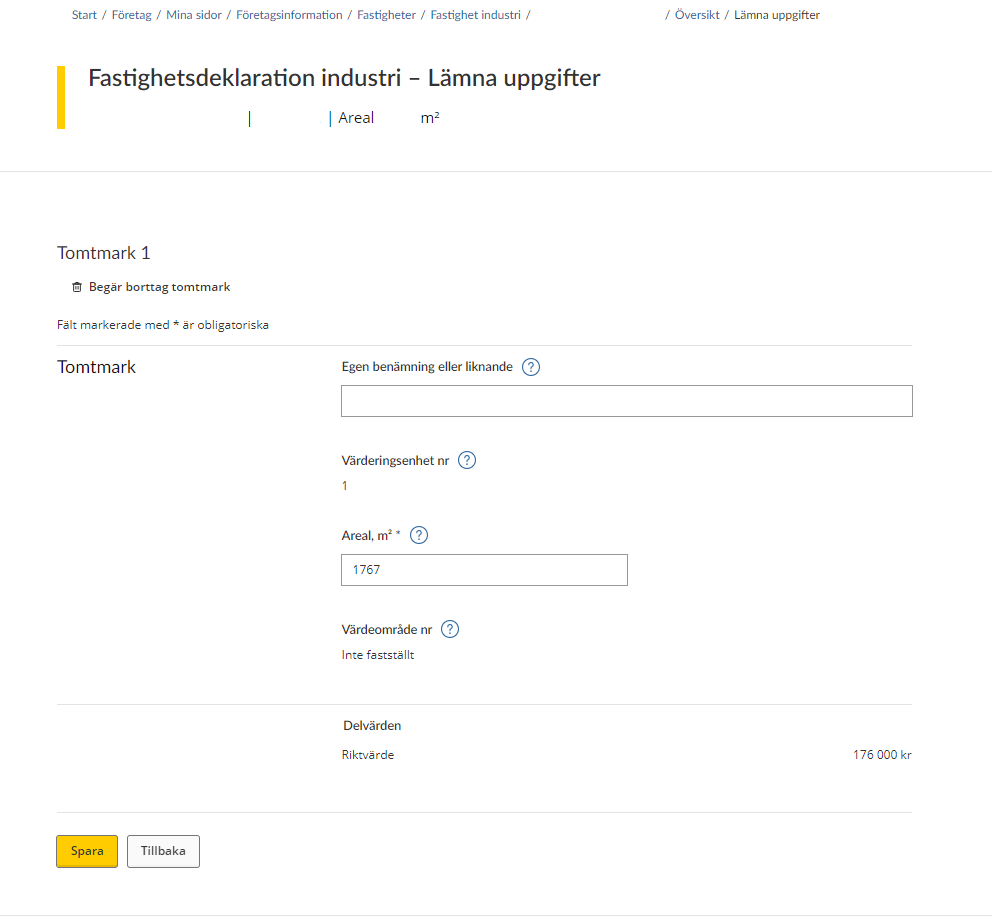
If you are going to provide information about a plot of land you will be shown a form. This form specifies all the information the Swedish Tax Agency needs to know about your plot of land.
The plot of land in question appears at the top of the form (according to the numbering system), and there is also the option of removing this plot of land by clicking on the wastebasket icon that says “Begär borttag tomtmark” (“Request removal of plot of land”. (See section 3.5)
On the rest of the form you have to/can provide information about the following:
- Own designation or similar – Here you state your own designation in order to distinguish one or more of your plots of land.
- The value unit number is shown.
- “Areal*” (Area*), expressed in hectares without decimals.
- “Värdeområde nr” (Asset area no.) – the asset area number will be shown if it has been determined.
- “Delvärden” (Partial values) – partial values will be shown if they have been determined.
Click on the button marked “Spara” (“Save”) to save the information. You will then be taken back to the overview page where all value units are listed. (See section 2)
If you click on “Save” when a piece of information is missing, you will see an error message outlining what needs to be done before the information can be saved.
If you want to go back to the overview page without saving any information, click on the button marked “Tillbaka” (“Back”). (See section 3.1)
3.2.2 Industrial building, returns estimated
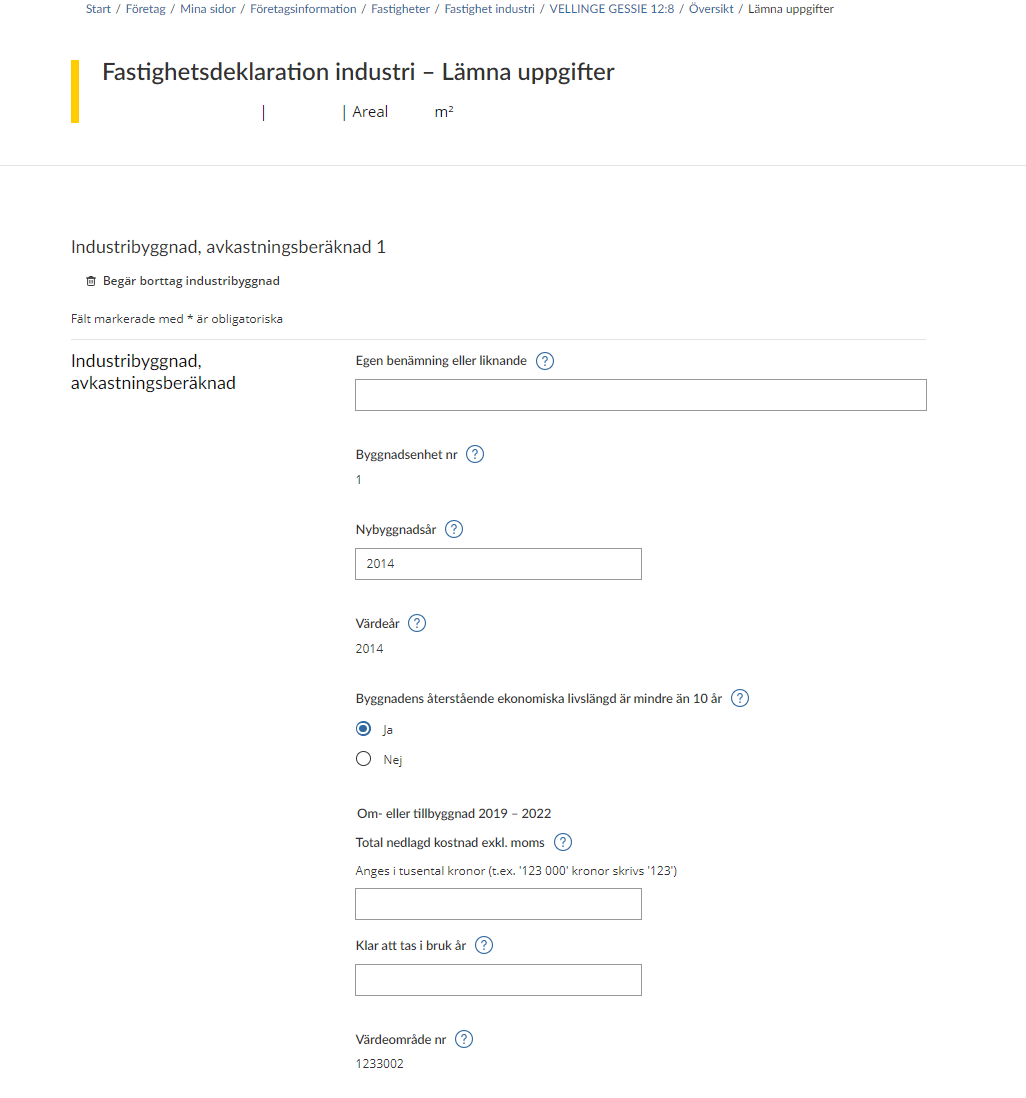
If you are going to provide information about an industrial building for which the returns have been estimated, you will be shown a form. This form specifies all the information the Swedish Tax Agency needs to know about your industrial building.
The industrial building in question appears at the top of the form (according to the numbering system), and there is also the option of removing this industrial building by clicking on the wastebasket icon that says “Begär borttag industribyggnad” (“Request removal of industrial building”). (See section 3.5)
Note that information marked * is required.
On the rest of the form you have to/can provide information about the following:
General information:
- Own designation or similar – Here you state your own designation if you or an earlier owner gave the unit a name.
- The building unit number is shown.
- Year of original construction – The year in which the building was completed.
- The valuation year is shown.
- The building’s remaining useful life is less than 10 years.
- Yes
- No
Conversion or extension
- Total expenditure excl. VAT – state in SEK thousand
- Ready for use in – state the year in which the building was ready for use
- Asset area no. – the asset area number will be shown if it has been determined.
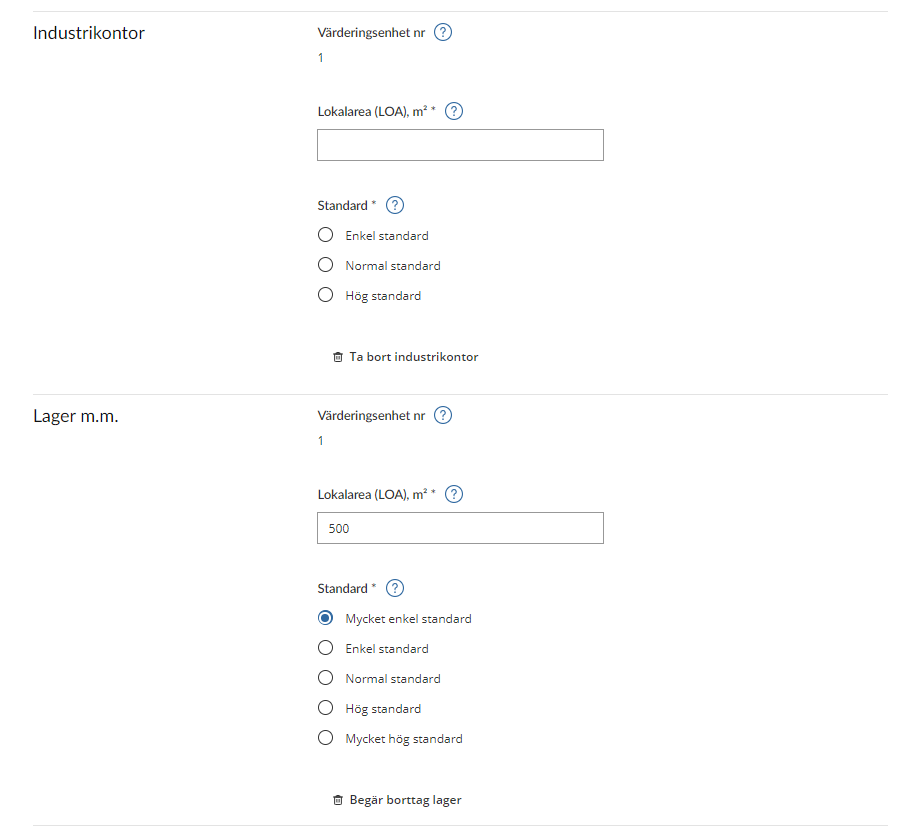
Industry office
- The valuation unit number is shown.
- Area of premises (“Lokalarea”, or LOA in Swedish), m2* – state here the total floor area of the office in square metres.
- Standard*
- Basic standard
- Normal standard
- High standard
At the bottom of the section is the option of removing an industry office. You do so by clicking the wastebasket icon that says “Ta bort industrikontor” (“Remove industry office”).
Storage etc.
- The valuation unit number is shown.
- Area of premises (LOA), m2* – state here the total floor area, in square metres, of the storage space.
- Standard*
- Very basic standard
- Basic standard
- Normal standard
- High standard
- Very high standard
At the bottom of the section is the option of removing a storage building. You do so by clicking the wastebasket icon that says “Begär borttag lager” (“Request removal of storage”).
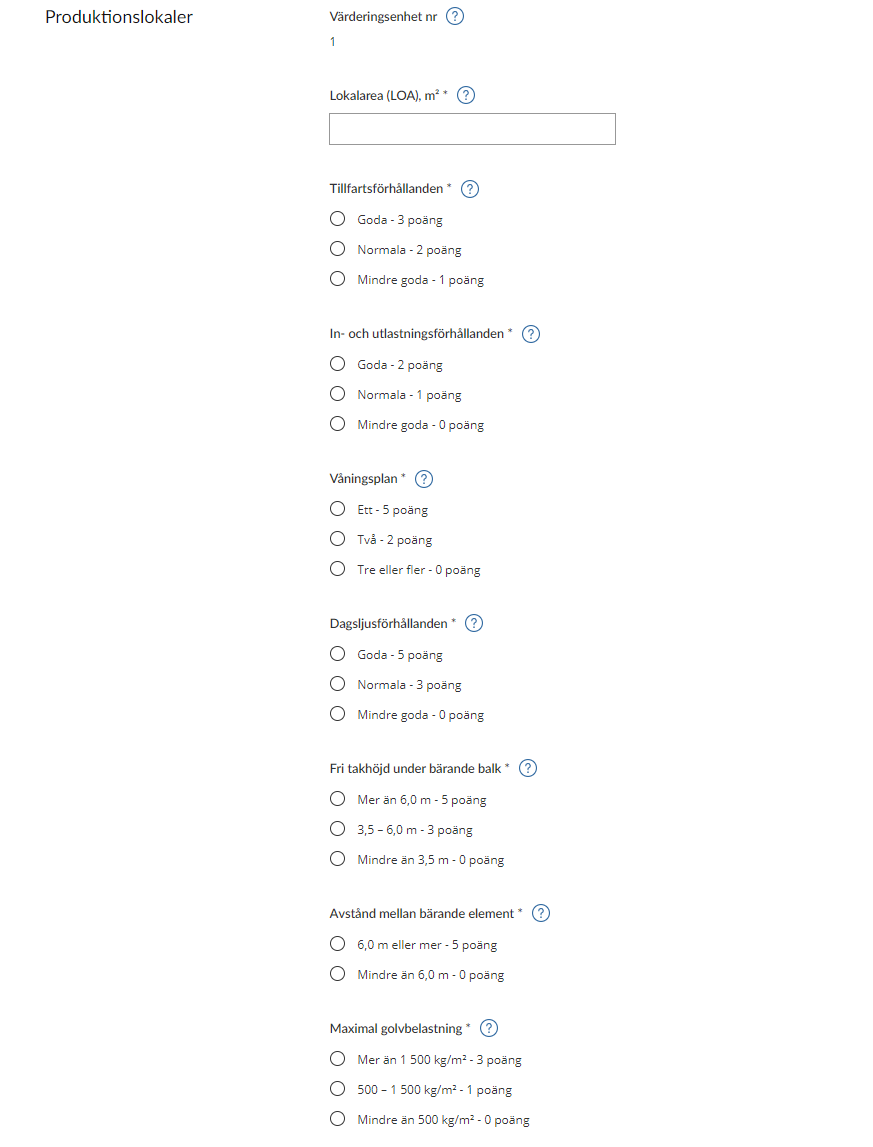
Production premises
- The valuation unit number is shown.
- Area of premises (LOA), m2* – state here the total floor area, in square metres, of the production premises.
- Conditions for access* – How easily the property can be reached by goods vehicles etc.
- Good – 3 points
- Normal – 2 points
- Not good – 1 point
- Loading and unloading conditions*
- Good – 2 points
- Normal – 1 point
- Not good – 0 points
- Number of floors*
- One – 5 points
- Two – 2 points
- Three or more – 0 points
- Daylight conditions*
- Good – 5 points
- Normal – 3 points
- Not good – 0 points
- Ceiling clearance to under structural beam*
- More than 6.0 m – 5 points
- 3.5–6.0 m – 3 points
- Less than 3.5 m – 0 points
- Distance between structural elements*
- 6.0 m or more – 5 points
- Less than 6.0 m – 0 points
- Maximum floor load*
- More than 1,500 kg/m2 – 3 points
- 500–1,500 kg/m2 – 1 point
- Less than 500 kg/m2 – 0 points
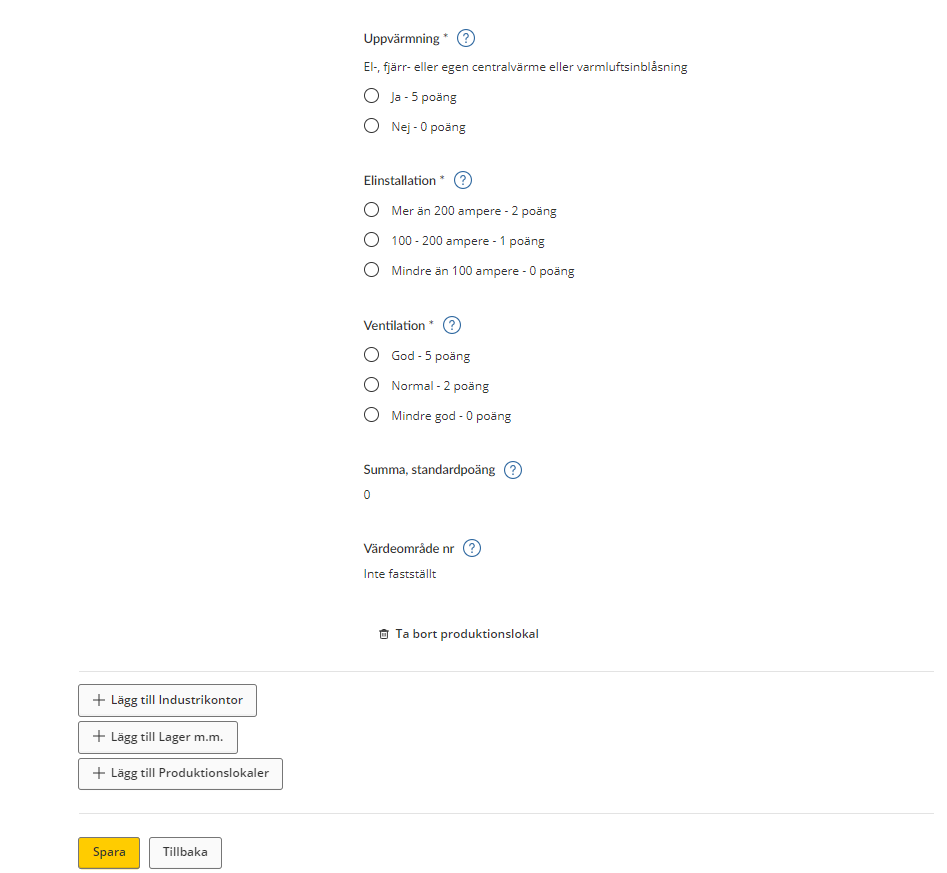
- Heating* – Electric, district, or own central heating system or hot air insufflation[?]
- Yes – 5 points
- No – 0 points
- Electric installation*
- More than 200 amperes – 2 points
- 100–200 amperes – 1 point
- Less than 100 ampere – 0 points
- Ventilation*
- Good – 5 points
- Normal – 2 points
- Not good – 0 points
- Total points for standard – computed and shown.
- Asset area no. – the value area number will be shown if it has been determined.
At the bottom of the section is the option of removing production premises. You do so by clicking the wastebasket icon that says “Ta bort produktionslokal” (“Remove production premises”).
If you want to add further spaces to the industrial building, click “+ Lägg till Industrikontor” (“+Add Industry office”), “+ Lägg till Lager m.m.” (“+Add Storage etc.”) or “Lägg till Produktionslokaler” (“+Add Production premises”) at the bottom of the form.
If you want to save the information provided, click “Spara”. You will then be taken back to the overview page where all valuation units are listed. (See section 3.1)
If you save when an item of information is missing, you will see an error message describing what needs to be done before the information can be saved.
If you want to go back to the overview page without saving any information, click the “Tillbaka” (“Back”) button. (See section 3.1)
3.2.3 Industrial building, production costs estimated
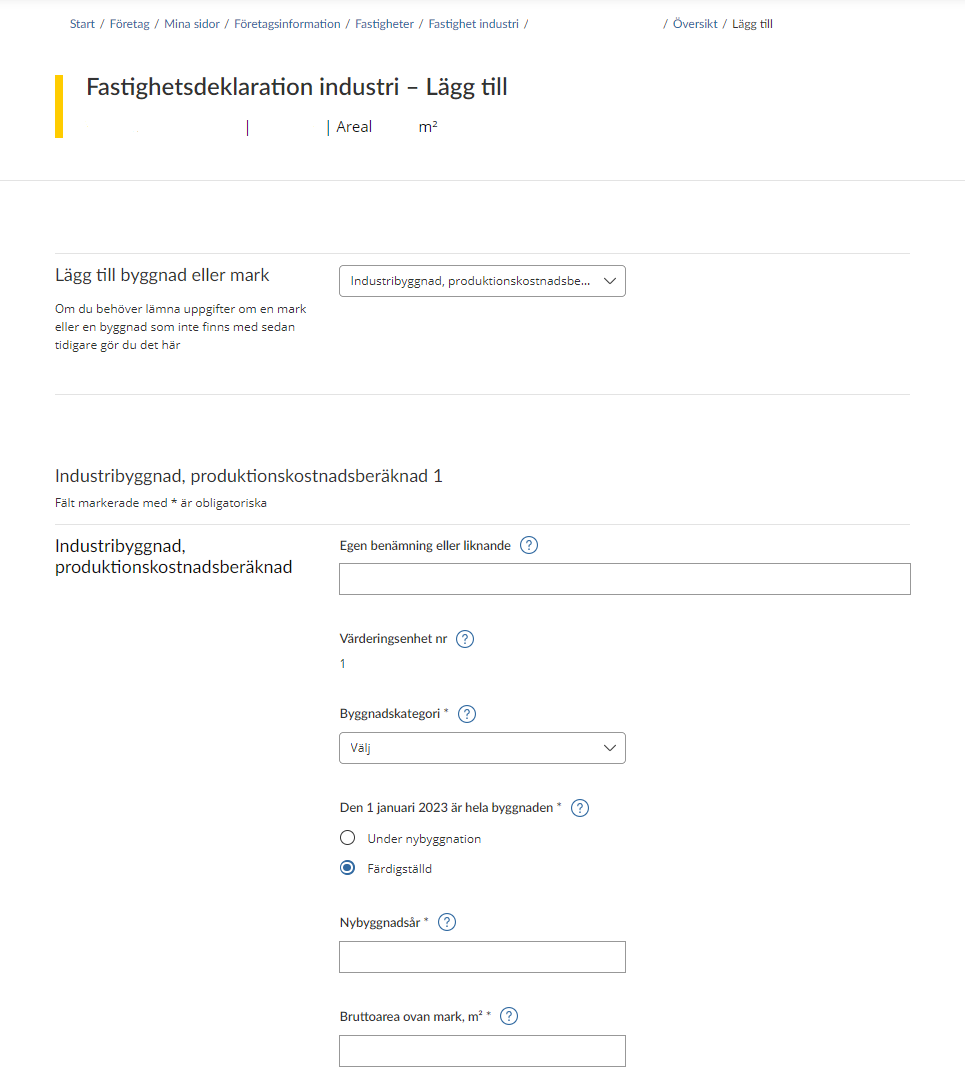
If you are going to provide information about an industrial building for which the production costs have been estimated, you will be shown a form. This form specifies all the information the Swedish Tax Agency needs to know about your industrial building.
The industrial building in question appears at the top of the form (according to the numbering system), and there is also the option of removing this industrial building by clicking on the wastebasket icon that says “Begär borttag industribyggnad” (“Request removal of industrial building”). (See section 3.5)
Note that information marked * is required.
On the rest of the form you have to/can provide information about the following:
General information:
- Own designation or similar – Here you state your own designation if you or an earlier owner gave the unit a name.
- The valuation unit number is shown.
- Building category* – Select a category from the drop-down menu:
- Oil refineries or petrochemical industries
- Pulp or paper mill
- Iron or steel industries, or metal smelting works
- Cement or lime industries, or for the production of industry minerals
- Grain silos
- Sawmills
- Filling stations
- Masts
- Activity other than those shown in 1–8 above
- On 1 January the entire building was*
- Under construction
- Completed
If the building was completed on 1 January the year of assessment you have to provide information about the following:
- Year of original construction* – The year in which the building was completed
- Gross area above ground, m2 – den totala arean av samtliga våningsplan
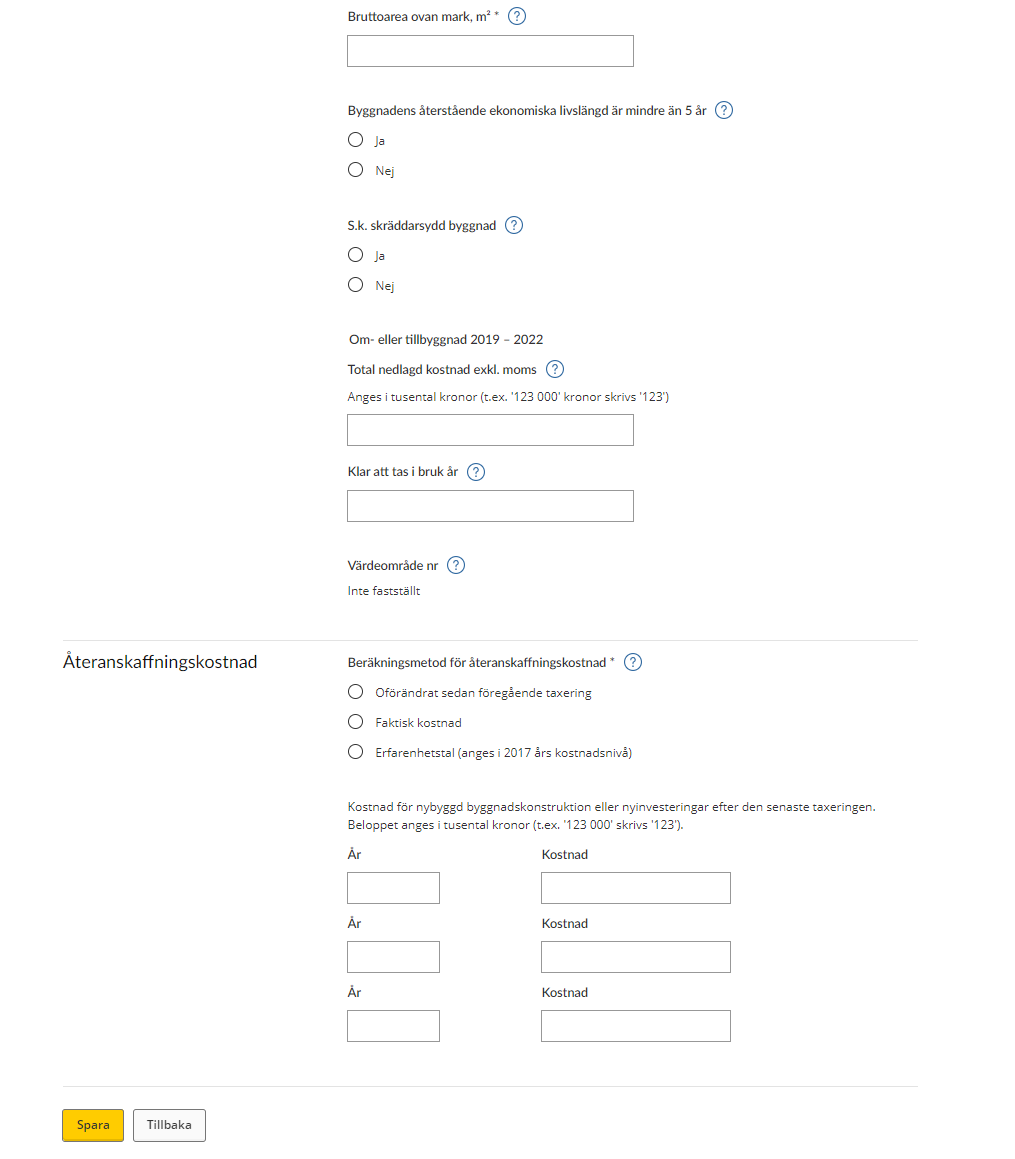
- The building’s remaining useful life is less than 5 years
- Yes
- No
- “Custom-built” building
- Yes
- No
Conversion or extension
- Total expenditure excl. VAT – state in SEK thousand
- Ready for use in – state the year in which the building was ready for use
- Asset area no. – the value area number will be shown if it has been determined.
If you want to save the information provided, click “Spara”. You will then be taken back to the overview page where all valuation units are listed. (See section 3.1)
If you save when an item of information is missing, you will see an error message describing what needs to be done before the information can be saved.
If you want to go back to the overview page without saving any information, click the “Tillbaka” (“Back”) button. (See section 3.1)
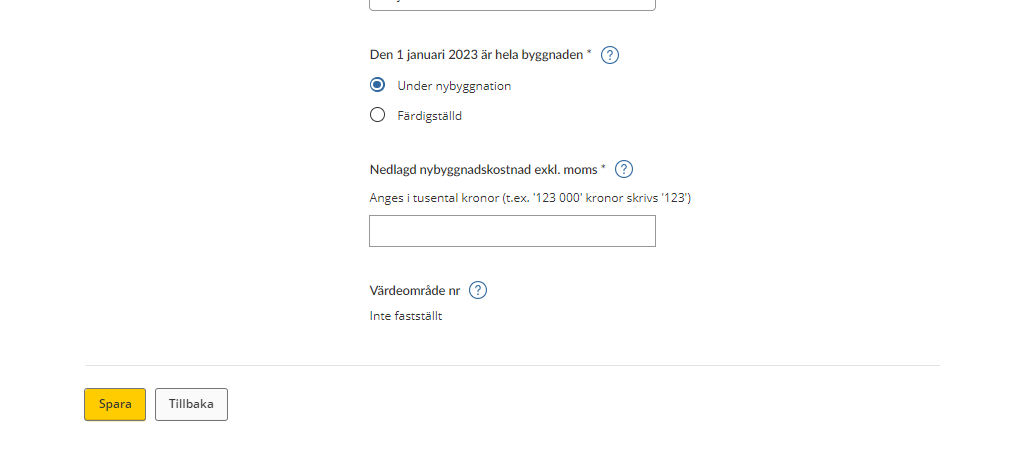
If the building was under construction on 1 January of the year of assessment you have to provide information about the following instead:
- Expenditure on original construction excl. VAT – state in SEK thousand
- Asset area no. – the value area number will be shown if it has been determined.
Note that information marked * is required.
If you want to save the information provided, click “Spara”. You will then be taken back to the overview page where all valuation units are listed. (See section 3.1)
If you save when an item of information is missing, you will see an error message describing what needs to be done before the information can be saved.
If you want to go back to the overview page without saving any information, click the “Tillbaka” (“Back”) button. (See section 3.1)
3.2.4 Industrial machinery and equipment
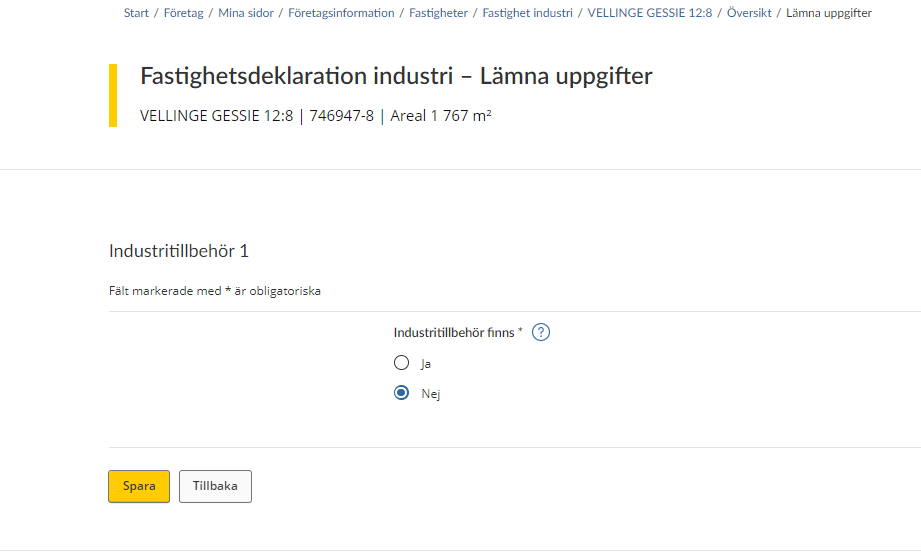
If you are going to provide information about industrial machinery and equipment you will be shown a form. On the form you have to provide information about the following:
- Industrial machinery and equipment is present*
- Yes
- No
If you want to save the information provided, click “Spara”. You will then be taken back to the overview page where all valuation units are listed. (See section 3.1)
If you want to go back to the overview page without saving any information, click the “Tillbaka” (“Back”) button. (See section 3.1)
3.3 Add a building or plot of land
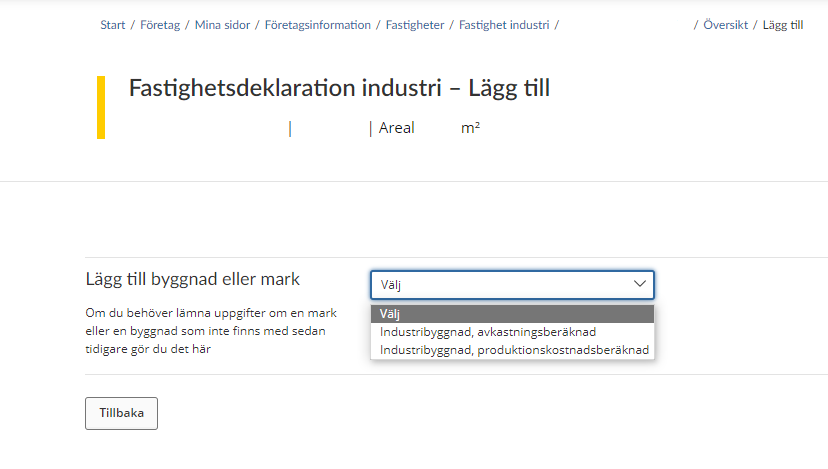
If the list does not include all valuation units you can add a valuation unit yourself by clicking the button “Lägg till Byggnad eller mark” (“Add building or plot of land”).
You will then be shown a drop-down menu where you select either “Industribyggnad, avkastningsberäknad” (“Industrial building, returns estimated”) or “Industribyggnad, produktionskostnadsberäknad” (“Industrial building, production costs estimated”) to add. Once you have selected a valuation unit, you will be taken to the relevant form. (See sections 3.2.2 – 3.2.3)
If you change your mind and decide not to add a new valuation unit you can click “Tillbaka (“Back”), which will take you back to the overview page where all valuation units are listed. (See section 3.1)
3.4 Information missing for a valuation unit
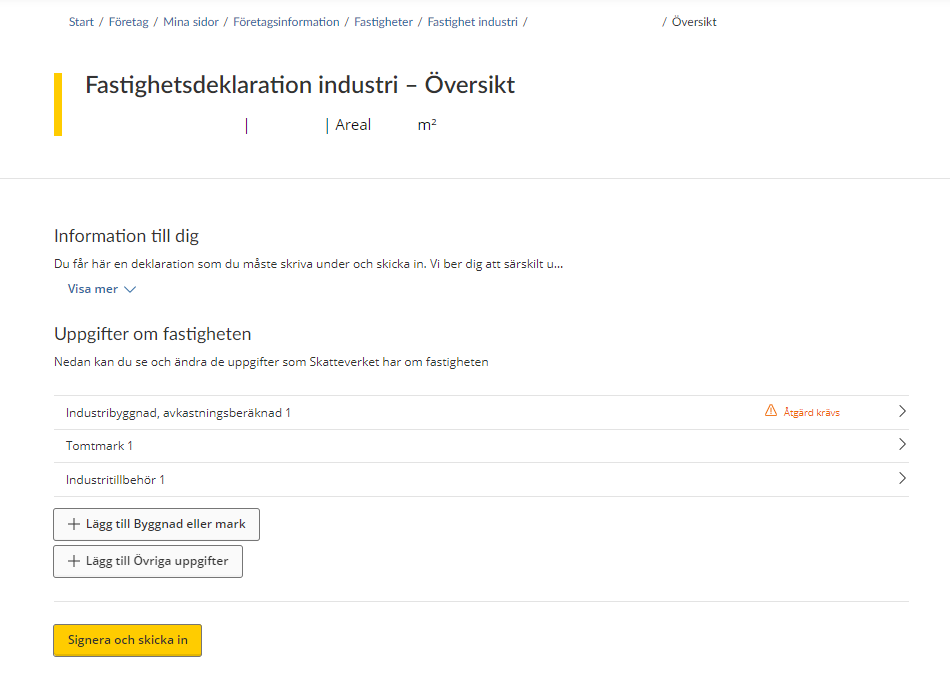
If you need to add any item of information about a valuation unit you will be shown this in the overview. You will see a message in red saying “Åtgärd krävs” (“Action required”) next to the valuation unit in question.
You then have to click on that valuation unit in order to add the missing information before you can sign and submit the information. (See the forms in sections 3.2.1 – 3.2.4 to understand which information needs to be added.)
3.5 Remove building or plot of land
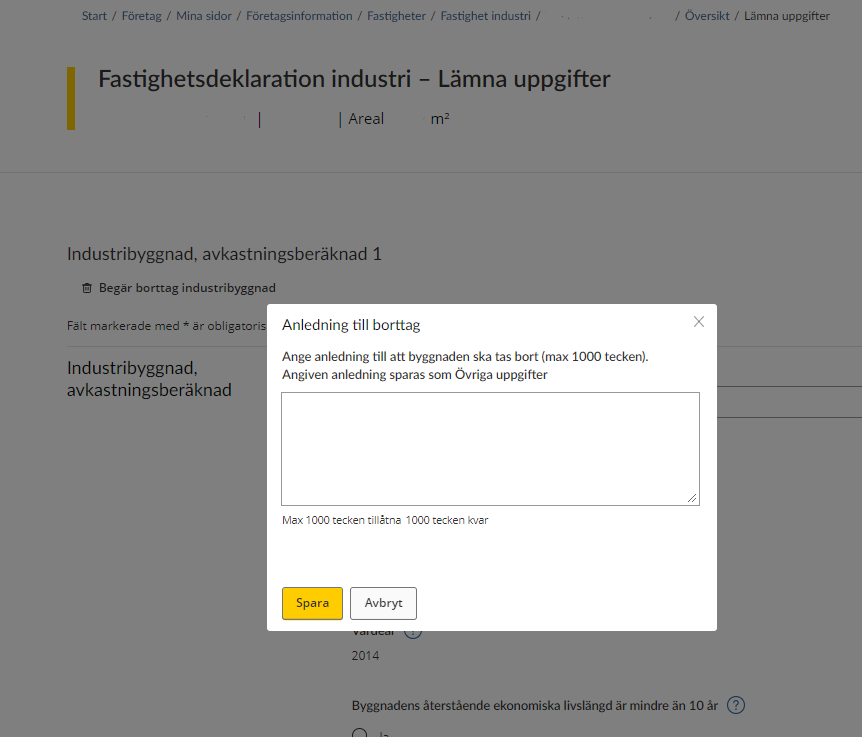
When you have the form for either a building or land open, you can opt to remove the valuation unit by clicking on the wastebasket icon saying “Begär borttag av x” (“Request removal of x”) (in the example below the button says “Begär borttag industribyggnad” (“Request removal of industrial building”).
If you opt to remove a valuation unit you will be asked to provide a reason for this. Your reason can be a maximum of 1,000 characters in length.
If you want to save the information provided, click “Spara”. You will then be taken back to the overview page where all valuation units are listed. (See section 3.1)
If you don’t want to want to provide a reason for the removal, click “Avbryt” to cancel.
3.6 Other information
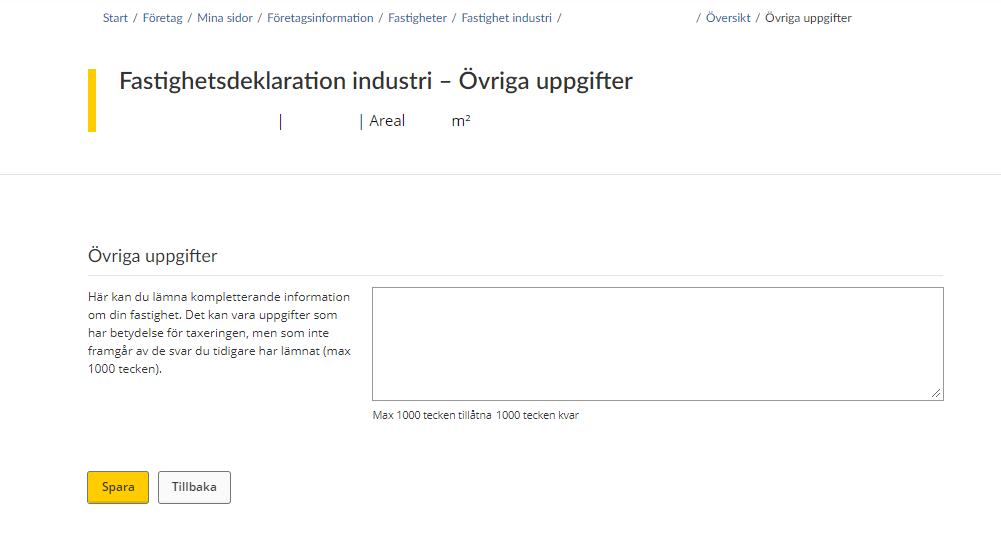
If you have opted to provide other information you will be taken to a text box where you can provide additional information about your property. The information you provide can be a maximum of 1,000 characters in length.
Click “Spara” to save the text you typed, and then you will be taken back to the overview page where all valuation units are listed. (See section 3.1)
If you change your mind about providing other information, click the “Tillbaka” button and you will be taken back to the overview page where all valuation units are listed. (See section 3.1)
3.7 Notification of ownership change
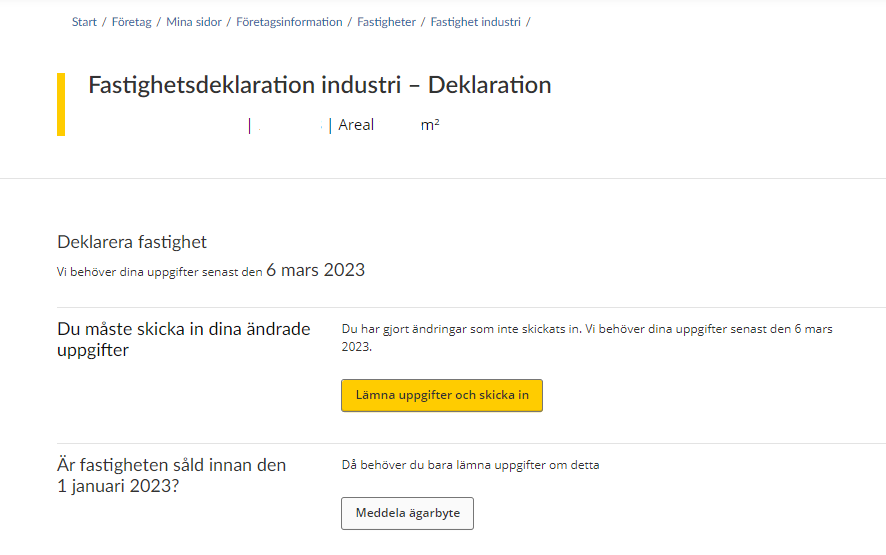
If the property was sold before 1 January the year of assessment, you do not have to provide any information about it.
Instead you have to inform the Swedish Tax Agency that a change of ownership has occurred. You do this by clicking on the button “Meddela ägarbyte” (“Notification of ownership change”).
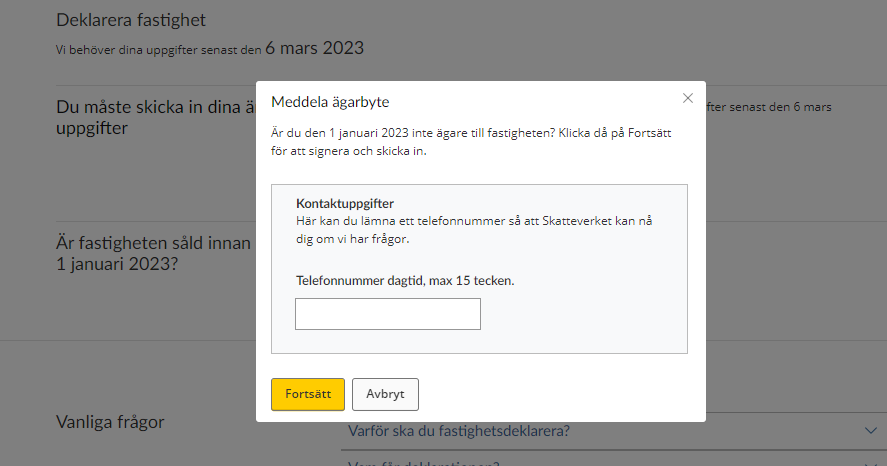
When you have opted to click “Notification of ownership change” you will be asked to provide your phone number so that the Swedish Tax Agency can contact you if needed. The phone number you provide can have a maximum of 15 characters.
Once you have provided your phone number and want to proceed, click the “Spara” button to save. You will then be taken to a signing procedure in which you have to approve the information provided with your e-ID.
If you change your mind about making an ownership change notification, click the “Avbryt” button to cancel.
4 Sign and submit your tax return
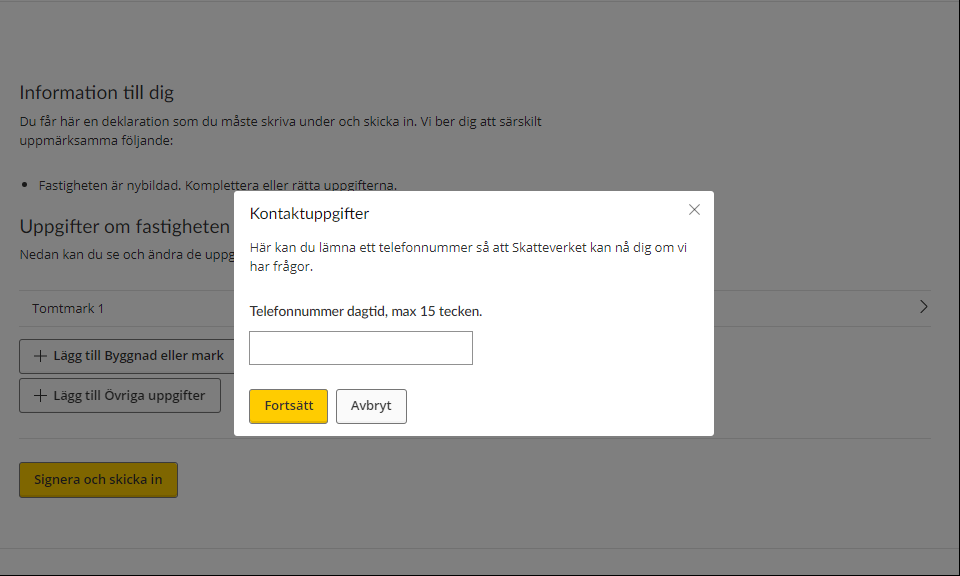
Once you have clicked “Signera och skicka in” (“Sign and submit”), you will asked to provide your phone number so that the Swedish Tax Agency can contact you if needed. The phone number you provide can have a maximum of 15 characters.
Click “Fortsätt” (“Continue”) to proceed with the signing procedure, in which you have to approve the information you provided using your eID.
Click “Avbryt” (“Cancel”) to return to the overview page where you can review the information you have provided.
Once you have approved the information and submitted your tax return, you will be sent a receipt that includes the information you submitted via the e-service.