How to use our e-service Staff ledger, construction – See, register, change and deregister building sites
This is a guide on how to use our e-service Staff ledger, construction – See, register, change and deregister building sites.
Log in to the e-service
How to log in to the e-service
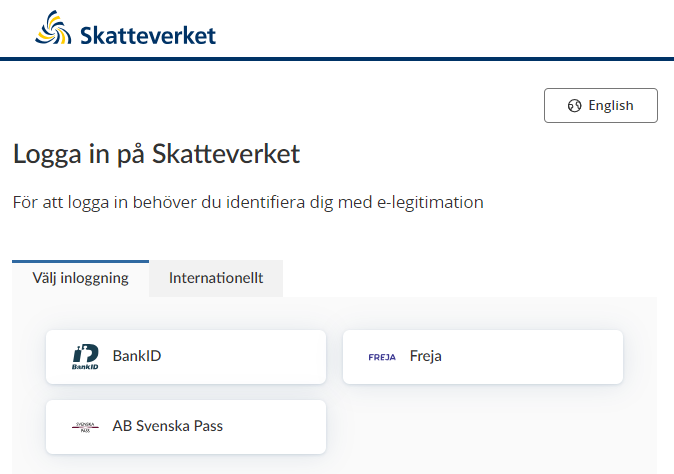
When you have selected the e-service you want to log in to, a login page will open. In the upper part of the view you can change the language to English by clicking the button ”English”. By choosing ”International” you get more alternatives for eIDs you can use to log in to the e-service. Select the login mode that suits you best by clicking it, and then proceed to identify yourself.
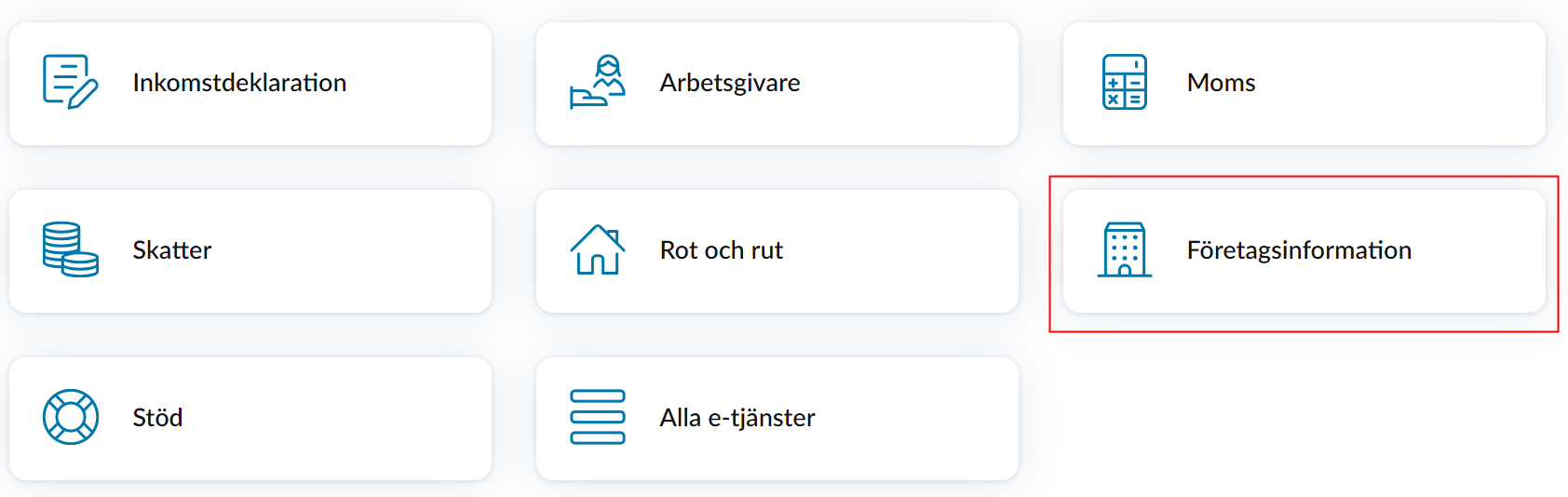
Once you have logged in, click “Företagsinformation” (“Company information”) at the bottom of the page.
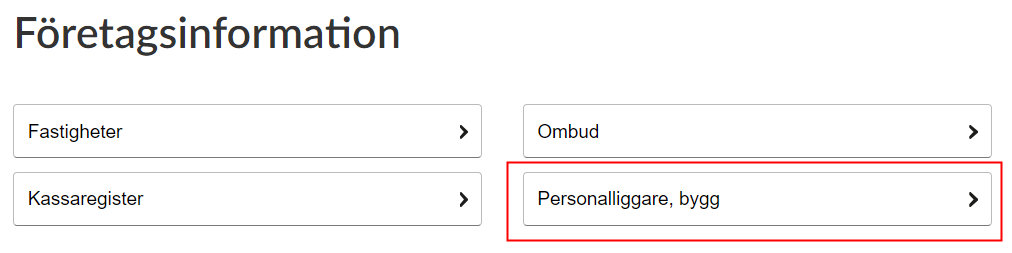
Click “Personalliggare, bygg” (“Staff ledger, construction”).
When you access the e-service, you can see building sites that have been registered and deregistered. You can also register, change and deregister building sites.
See registered building sites
Click the arrow on the far left of each row to view more detailed information.
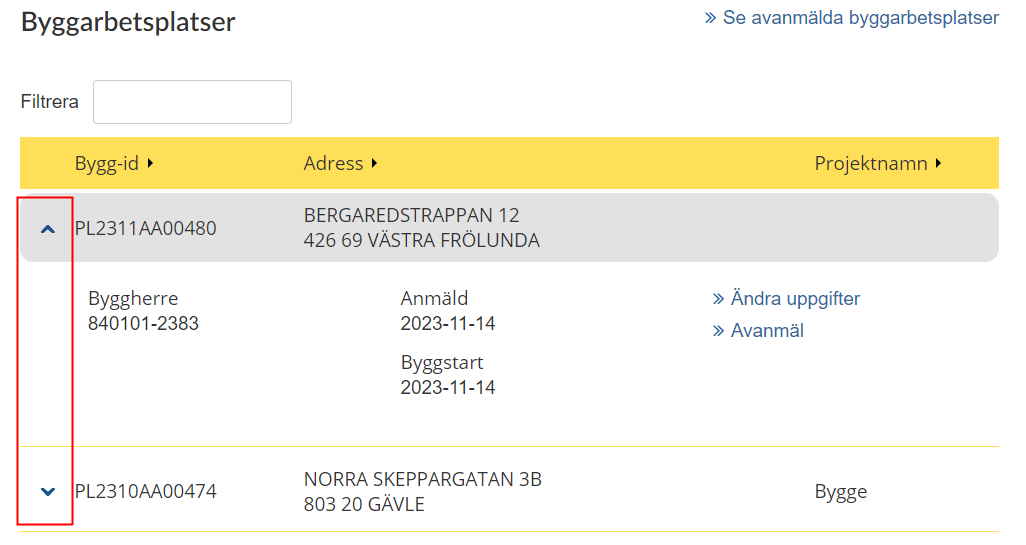
Byggherre (Developer), Anmäld (Registered), Byggstart (Start date).
Change information about a building site
Click the link “Ändra uppgifter” (“Change information”). A form will open. The form contains the information registered for the building site. You can change any information that is incorrect.
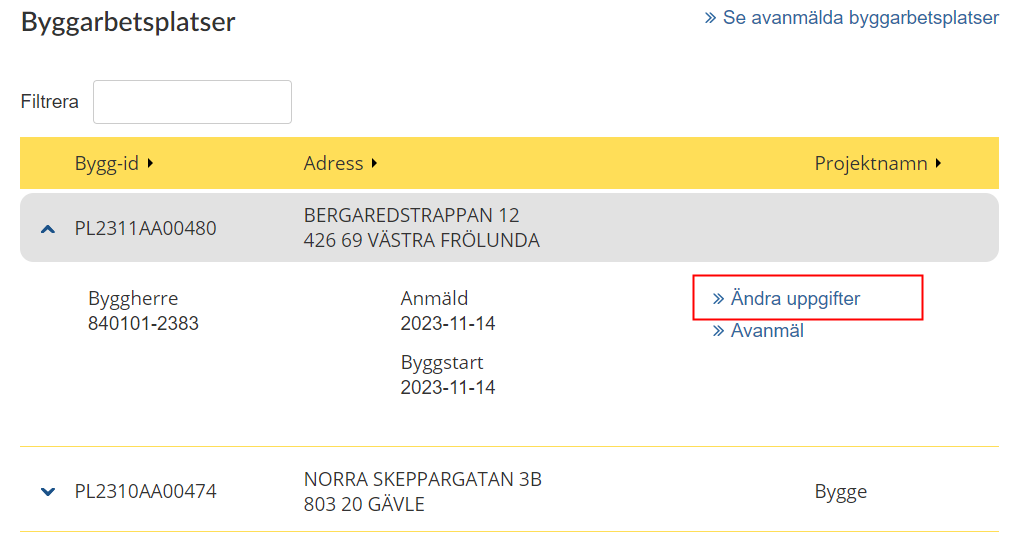
You can change information in the fields that are in white, and by clicking the link “Ändra” (“Change”) on the form you can change the date on which construction will start.
Make the changes you want to and click the button “Spara” (“Save”) when you are finished. If you want to cancel the changes, click the button “Avbryt” (“Cancel”).
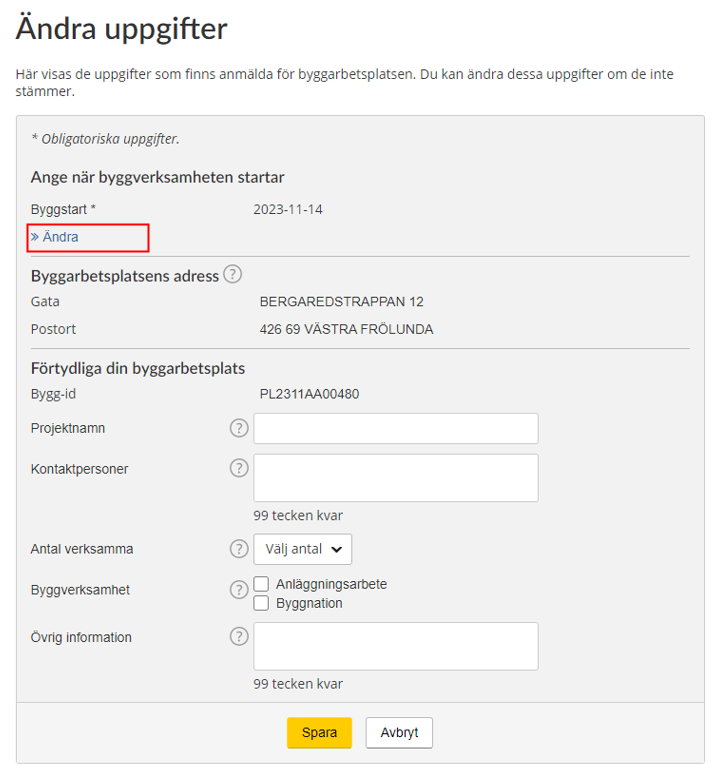
Explanations of the words in the form:
- Ange när byggverksamheten startar – State when construction will start,
- Byggstart – Start date,
- Byggarbetsplatsens adress – Address of the building site,
- Gata – Street,
- Postort – City/town,
- Förtydliga din byggarbetsplats – Details about your building site,
- Bygg-id – Build ID,
- Projektnamn – Project name,
- Kontaktpersoner – Contact person(s),
- Antal verksamma – Number of active workers,
- Välj antal – Select number,
- Byggverksamhet – Construction activity,
- Anläggningsarbete – Civil engineering works,
- Byggnation – Construction,
- Övrig information – Additional information,
- 99 tecken kvar – 99 characters left.
Help texts
Each encircled question mark on the form is a help text button. Click it and the relevant help text will be shown.
- Byggarbetsplatsens adress (Address of the building site) – The address of the building site cannot be changed. If the address is wrong you have to register a new building site.
- Projektnamn (Project name) – If the building site has a working name, state it here.
- Kontaktpersoner Contact person(s) – Fill in the name and phone number of one or more contact persons on the building site.
- Antal verksamma (Number of active workers) – State the approximate number of people working on the building site at the same time.
- Byggverksamhet (Construction activity) – Specify what kind of construction activity describes your building site. You can select more than one option.
- Övrig information (Additional information) – Use this box to state any additional information about the building site, e.g. that it extends across a large area or is difficult to find. You can also specify any codes or IDs of your own. Everything you write under “Additional information” will be included on your receipt.
Once you have clicked the “Spara” (“Save”) button you will be shown a confirmation that the information has been registered.

Deregister a building site
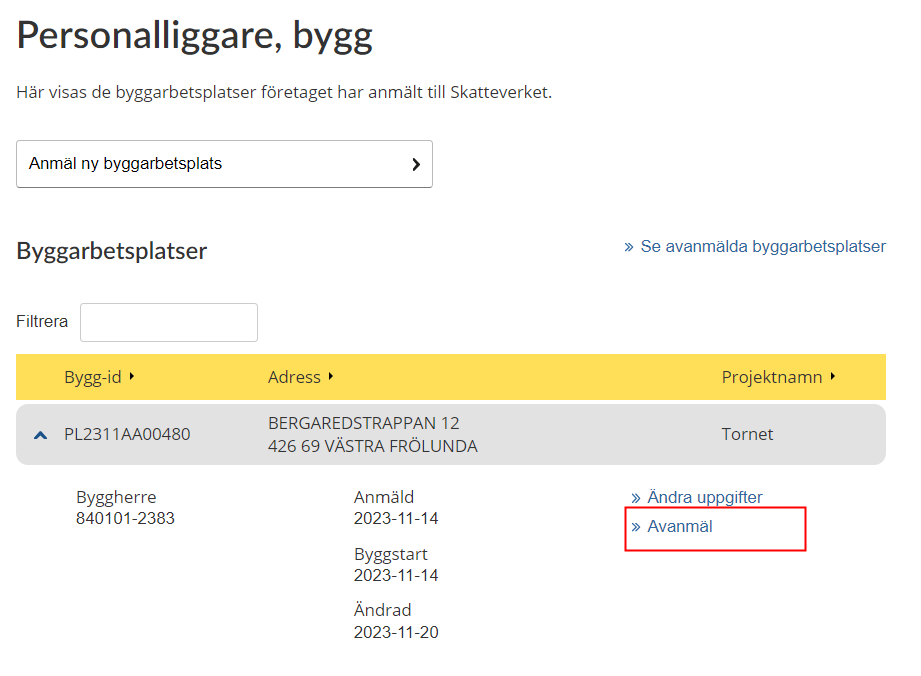
Click the “Avanmäl” (“Deregister”) link.
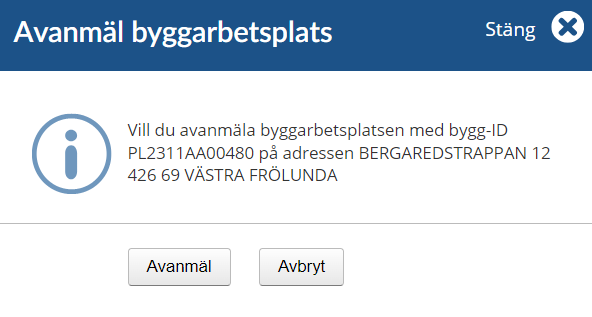
Click the “Avanmäl” (“Deregister”) button if you want to proceed and deregister the building site. If you want to cancel, click the “Avbryt” (Cancel) button instead.
Once you have clicked the “Avanmäl” (“Deregister”) button, you will be shown a confirmation that the building site has been deregistered.

Register a new building site
Click the button “Anmäl ny byggarbetsplats” (“Register a new building site”).
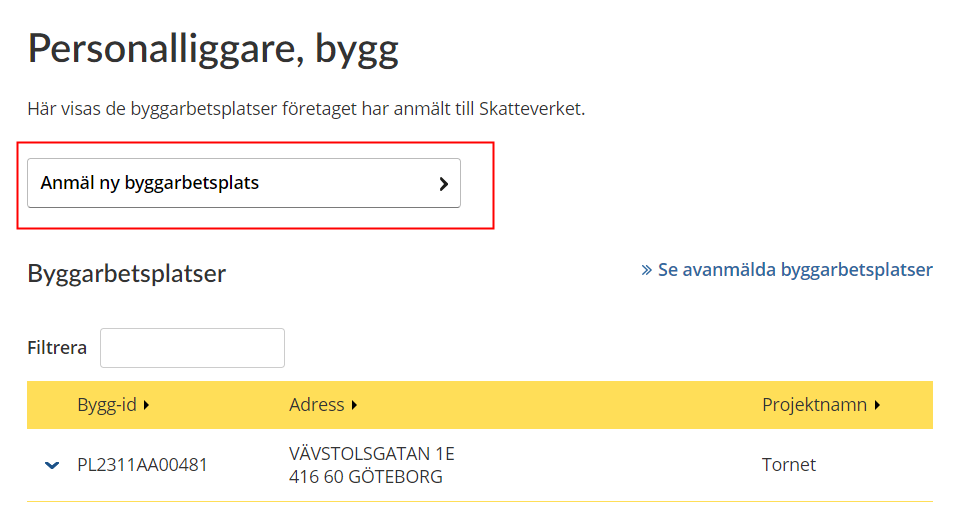
Step 1 – Byggarbetsplats (Building site).
Step 1 is filling in information about the building site.
Information marked with an asterisk (*) is required.
You can choose whether to state the building site’s address or its geographical position. If you choose geographical position you will have to specify its latitude, longitude and the municipality.
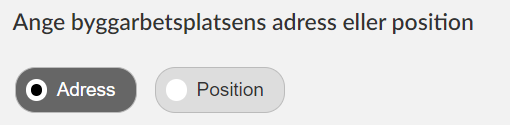
To state the address, begin by filling in the “Postnummer” (Postcode) field. Then click the link “Hitta adresser” (Find address) in the field next to it. This will open the “Gata” (Street) field and you can select the street from the list that is shown when you place the cursor in the field. Once you have selected the street, the “Nummer” (Number) field will open and you can select a number from the list shown.
Once you have filled in the form, click the “Nästa” (“Next”) button. If you want to cancel, click the “Avbryt” (“Cancel”) button instead.
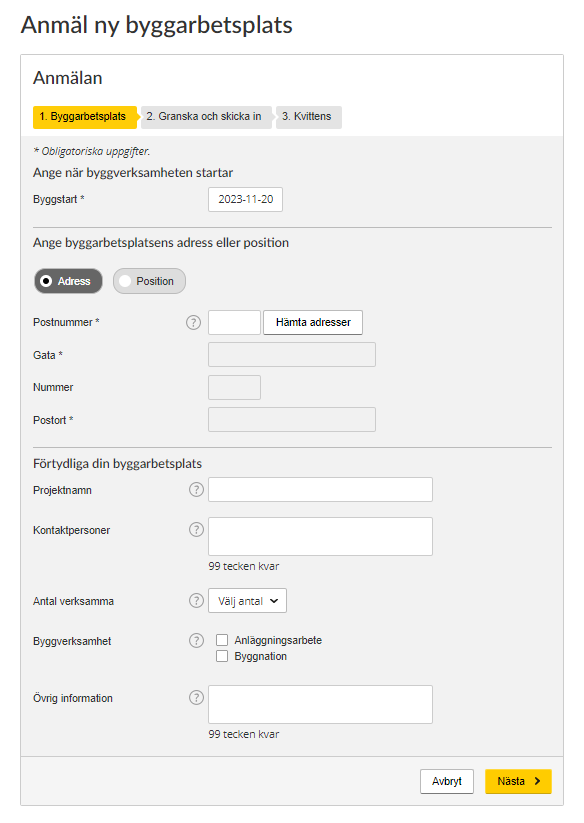
Explanations of the words in the form:
- Ange när byggverksamheten startar – State when construction will start,
- Byggstart – Start date,
- Ange byggarbetsplatsens adress eller position – State the building site’s address or geographical position,
- Adress – Address,
- Position – Geographical position,
- Postnummer – Postcode,
- Hitta adresser – Find address,
- Gata – Street,
- Nummer – Number,
- Postort – City/town,
- Förtydliga din byggarbetsplats – Details about your building site,
- Projektnamn – Project name,
- Kontaktpersoner – Contact person(s),
- Antal verksamma – Number of active workers,
- Välj antal – Select number,
- Anläggningsarbete – Civil engineering works,
- Byggnation – Construction,
- Övrig information – Additional information,
- 99 tecken kvar – 99 characters left.
Help texts
Each encircled question mark on the form is a help text button. Click it and the relevant help text will be shown.
- Postcode – Begin by filling in the post code. You can then select the street and street number.
- Project name – If the building site has a working name, state it here.
- Contact person(s) – Fill in the name and phone number of one or more contact persons on the building site.
- Number of active workers – State the approximate number of people working on the building site at the same time.
- Construction activity – Specify what kind of construction activity describes your building site. You can select more than one option.
- Additional information – Use this box to state any additional information about the building site, e.g. that it extends across a large area or is difficult to find. You can also specify any codes or IDs of your own. Everything you write under “Additional information” will be included on your receipt.
Step 2 – Review and submit
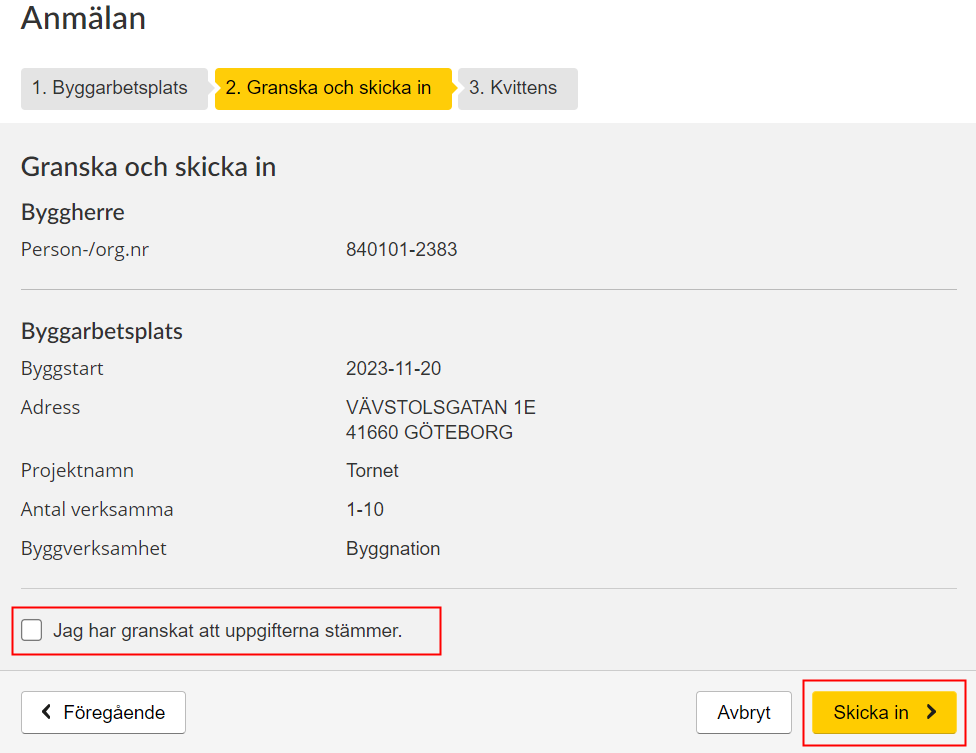
In this step you review the information you have provided and then submit it.
If all the information is correct, tick the little box by “Jag har granskat att uppgifterna stämmer” (I have reviewed the information to verify that it is correct) and then click the “Skicka in” (“Submit”) button.
If you need to change any item of information, click the “Föregående” (“Previous”) button. If you want to cancel, click the “Avbryt” (“Cancel”) button.
Step 3 – Receipt
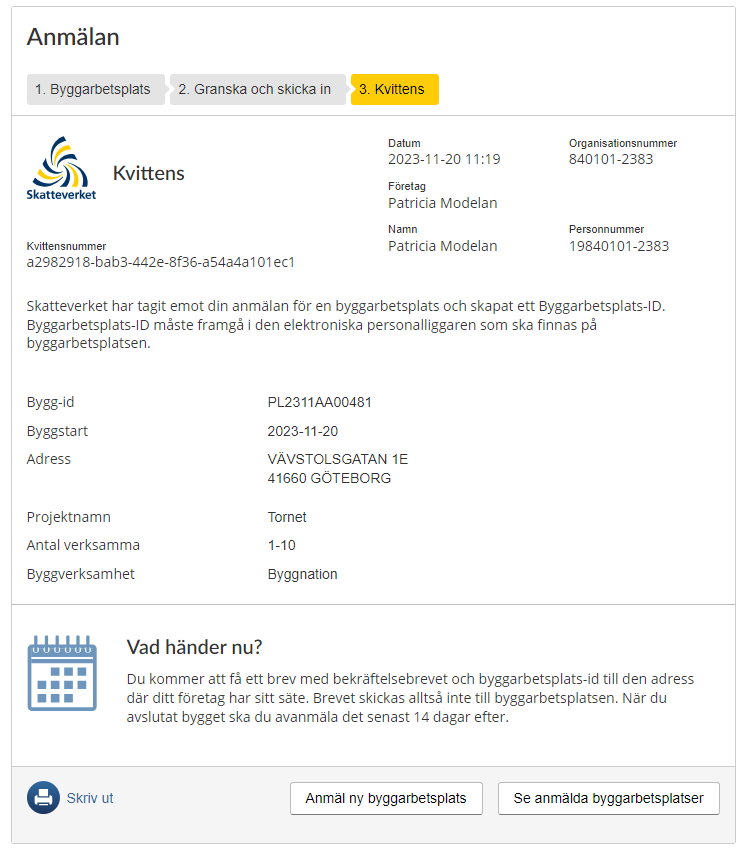
In the final step you are shown the receipt, which is a summary of all the information you have submitted and a confirmation that the Swedish Tax Agency has received your registration.
What happens next?
You will receive a letter with the confirmation of your registration and the Building site ID at the address of your company’s head office. Please note that the letter is sent there and not to the building site. Once you have completed the construction activity you have to deregister the building site within 14 days.
Click “Skriv ut” (“Print”) if you want to print out the receipt.
If you want to register another building site, click the “Anmäl ny byggarbetsplats” (“Register a new building site”) button.
If you want to go back and see all your registered building sites, click the “Se anmälda byggarbetsplatser” (“See registered building sites”) button.
See deregistered building sites
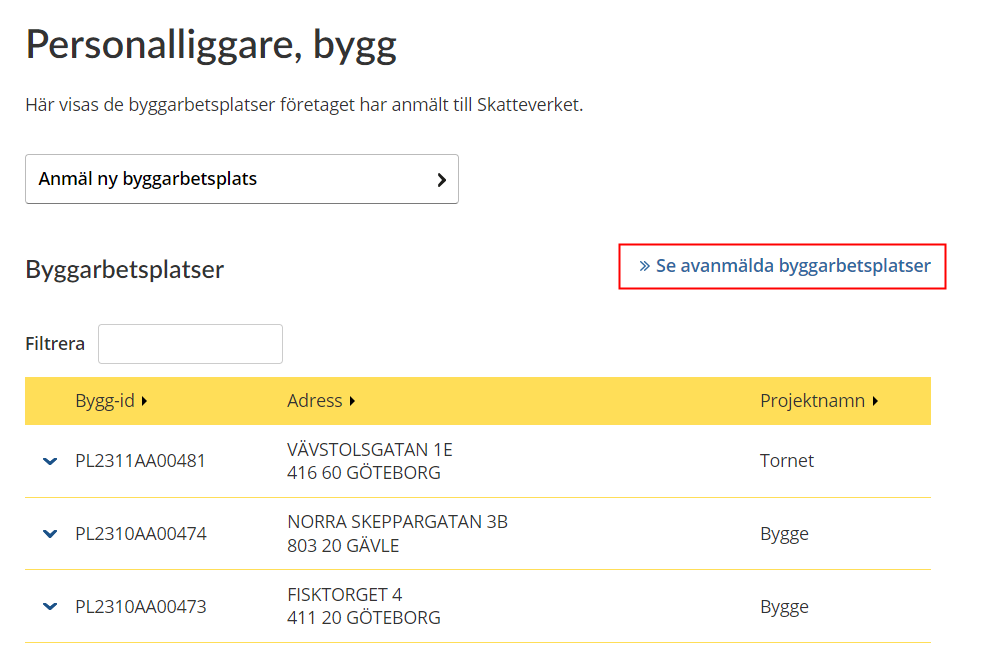
Click the link “Se avanmälda byggplatser” (“See deregistered building sites”).
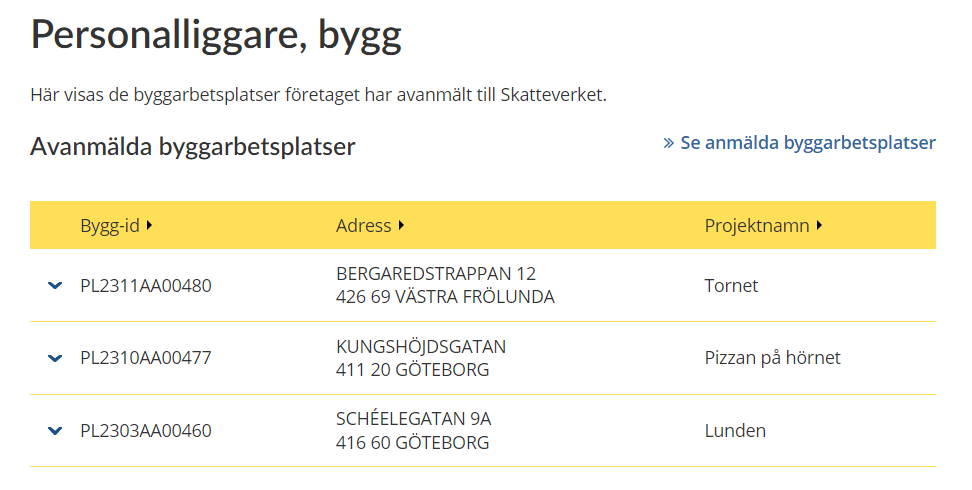
A list of deregistered building sites will be shown.
Click the link “Se anmälda byggplatser” (“See registered building sites”) to return to the overview of registered building sites.
 Leave a review (Your Europe)