How to use our e-service File PAYE tax return
This is a guide on how to use the e-service File PAYE tax return.
Log in to the e-service
1. How to log in to the e-service
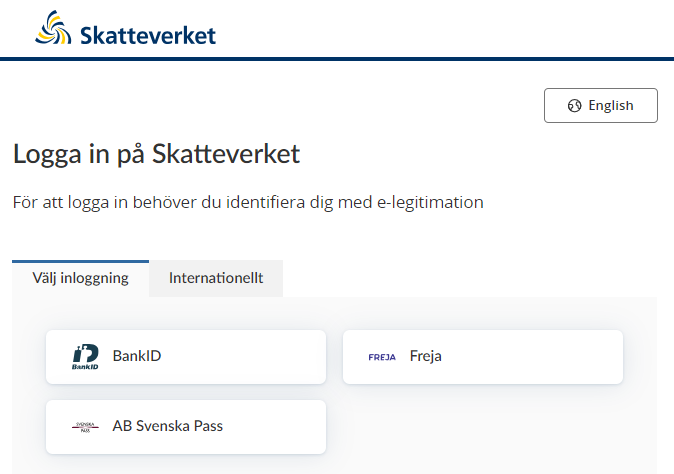
When you have selected the e-service you want to log in to, a login page will open. In the upper part of the view you can change the language to English by clicking the button ”English”. By choosing ”International” you get more alternatives for eIDs you can use to log in to the e-service. Select the login mode that suits you best by clicking it, and then proceed to identify yourself.
Select the person or legal entity you want to represent by clicking the relevant personal or corporate identity number.
2. Contact details
1. It is helpful if you provide contact details by clicking “Kontaktuppgifter” (“Contact details”) under the heading “Mer information” (“Further information”) at the bottom of the page.
2. Fill in your name, phone number and email address.
3. Click “Spara kontaktuppgifter” (“Save contact details”).
4. You will receive a message that the contact details have been saved and will be sent to the Swedish Tax Agency together with future PAYE tax returns submitted via the e-service.

5. Click “Avbryt” (“Cancel”).
3. File PAYE tax return
3.1 Submit a file with a complete PAYE tax return
- Click “Deklarera via fil” (“Submit via file transfer”)
- Click “Välj fil” (“Select file”).
- Highlight the complete file from your payroll system and click “Öppna” (“Open”).
- Click “Nästa” (“Next”).
- You will be shown a summary of the information to register. Review the information.
- Tick the box “Jag har granskat att uppgifterna stämmer” (“I have checked that the information provided is correct”).
- Click “Skriv under och skicka in” (“Sign and submit”).
- Once you have submitted the return to the Swedish Tax Agency, you will be sent a receipt.
3.2 Select a reporting period to file a return for
Provide the PAYE tax return by registering information manually and/or uploading files from your salary software.
Click on the reporting period in question.

3.2.1 File your return by registering information manually
1. Click “Lägg till betalningsmottagare” (“Add a payee”).
2. Register information about the payee by filling in personal identity number, coordination number or corporate identity number in box 215 and the specification number in box 570.
If you do not have the payee’s personal identity number, coordination number or corporate identity number, click “Visa fler fält” (“Show more fields”).
Read more about which boxes you need to fill in on the page How to fill in the PAYE tax return – box by box.
3. Click “Nästa” (“Next”).
4. Select a template to proceed in the e-service:
- “Ersättning som är underlag för arbetsgivaravgifter“ (“compensation forming the basis for employer contributions”)
- “Ersättning som inte är underlag för socialavgifter“ (“compensation not forming the basis for social security contributions”)
- “Särskild inkomstskatt för utomlands bosatta artister m. fl. (A-SINK)“ (“special income tax for artists, etc. resident abroad (A-SINK))”
- “Visa alla rutor“ (“show all boxes”).
5. Click “Nästa” (“Next”).
6. Register information for your employee in the relevant box for tax deducted and remuneration. Read more about which boxes you need to fill in on the page How to fill in the PAYE tax return – box by box.
7. Click “Spara & gå till utkast” (“Save & proceed to draft”).
8. Repeat steps 1-7 if you have paid compensation to additional employees. Otherwise click “ Nästa “ (Next”).
9. Click “ Nästa “ if you don’t have anything to register in the section “Arbetsgivare” (“Employers”). Read more in the section “Information about you as an employer” on the page How to fill in the PAYE tax return – box by box.
10. A summary of the information you registered will be shown. Review the information.
11. Tick the box “Jag har granskat att uppgifterna stämmer” (“I have checked that the information provided is correct”).
12. Click “Skriv under och skicka in” (“Sign and submit”).
13. Once you have submitted the return to the Swedish Tax Agency you will be sent a receipt.
3.2.2 File your return by uploading one or more files from your payroll system
1. Click “Ladda upp fil...” (“Upload file...”)
2. Click “Välj fil” (“Select file”).
3. Highlight the file from your salary software and click “Öppna” (“Open”).
4. Click “Nästa” (“Next”).
5. Click “Ladda upp fil” (“Upload file”).
6. Confirm the file by clicking “Gå till utkast” (“Go to draft”).
If you are adding more files, repeat steps 2-6.
7. Click “Nästa” (“Next”).
8. Click “Nästa” if you don’t have anything to register in the section “Arbetsgivare” (“Employers”). Read more in the section “Information about you as an employer” on the page How to fill in the PAYE tax return – box by box.
9. A summary of the information you registered will be shown. Review the information.
10. Tick the box “Jag har granskat att uppgifterna stämmer” (“I have reviewed the information and it is correct”).
11. Click “Skriv under och skicka in” (“Sign and submit”).
12. Once you have submitted the return to the Swedish Tax Agency you will be sent a receipt.
3.2.3 SEK 0 return – nothing to report
You have to submit a PAYE tax return even if you don’t have anything to report.
Click “Deklarera noll” (“SEK 0 return”) if you have not paid any compensation during the period.
2. A summary of the information you registered will be shown. Review the information.
3. Tick the box “Jag har granskat att uppgifterna stämmer” (“I have checked that the information provided is correct”).
4. Click “Skriv under och skicka in” (“Sign and submit”).
5. Once you have submitted the return to the Swedish Tax Agency you will be sent a receipt.
4. Correcting a PAYE tax return
Submit a correction if you discover that something needs to be changed in a PAYE tax return that you have filed.
If you have a corrected, complete file from your salary software, see section 3.1.
1. Click “Inlämnade arbetsgivardeklarationer” (“Submitted PAYE tax returns”).
2. Click on the reporting period you want to correct and select “Visa deklaration” (“View tax return”).
3. Click “Rätta uppgifter” (“Correct information”).
4. Click on the personal identity number of the person whose information you want to correct. Correct the incorrect information, click Spara” (“Save”) and then “Nästa” (“Next”).
If you have one or more corrected files from your payroll system, see section 3.2.2.
5. Click “Nästa” (“Next”) if you are not correcting any information in the section “Arbetsgivare” (“Employer”)
6. A summary of the information you registered will be shown. Review the information.
7. Tick the box “Jag har granskat att uppgifterna stämmer” (“I have checked that the information provided is correct”).
8. Click “Skriv under och skicka in” (“Sign and submit”).
9. Once you have submitted the return to the Swedish Tax Agency you will be sent a receipt.
 Leave a review (Your Europe)