


How to use our e-service Filing Income Tax Return 2 via e-service
This is a guide on how to use the e-service filing Income Tax Return 2 via e-service.
1. How to log in to the e-service
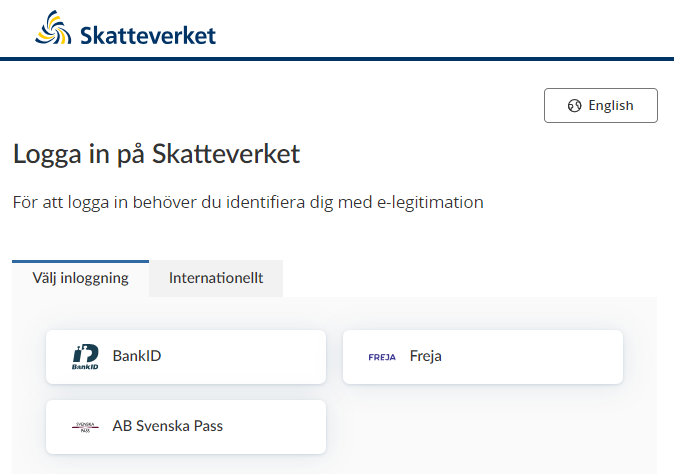
When you have selected the e-service you want to log in to, a login page will open. In the upper part of the view you can change the language to English by clicking the button ”English”. By choosing ”International” you get more alternatives for eIDs you can use to log in to the e-service. Select the login mode that suits you best by clicking it, and then proceed to identify yourself.
2. Start
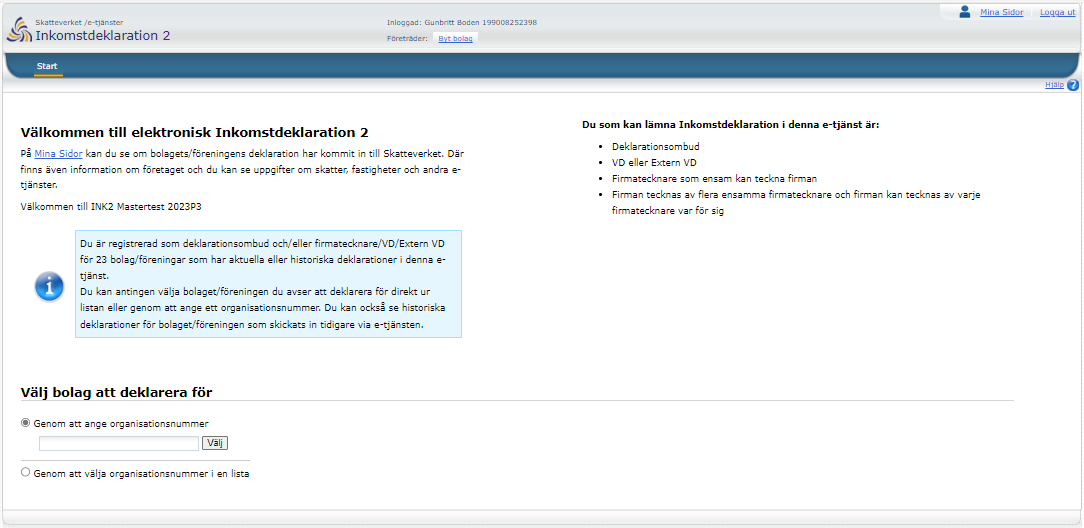
The start page has information about who can use this service:
- Tax return representative
- CEO or external CEO
- Sole signatory
- The company has several sole signatories and each signatory can sign on its behalf individually
It also informs you that you can consult Mina Sidor (“My Pages") to see if the company’s/association’s tax return has been received by the Swedish Tax Agency. Information about the company is also shown on the start page, as well as information about taxes, properties and other e-services.
- stating its corporate identity number; or
- selecting the corporate identity number of the company of which you are a representative or signatory
3. Select tax return
On this page are current tax returns that have to be filled in and submitted to the Swedish Tax Agency, as well as tax returns that were submitted earlier via the e-service. When the filing period for a tax return has ended, the submitted return is moved to the section “Historiska deklarationer" (Previous tax returns). A current tax return which has not been submitted is removed when the filing period ends. No information is shown here about tax returns submitted on paper.
You can also see the prefilled tax return here, under “Aktuella deklarationer" (Current tax returns).
- Select the tax return you want to fill in.
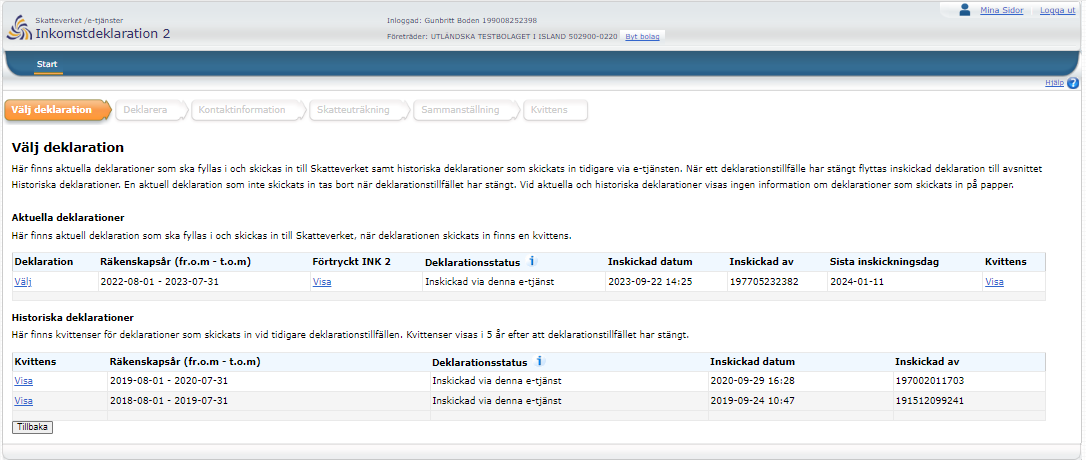
If you want to go back to the previous step, click the button ”Tillbaka” (Back).
4. Fill in tax return
On the page “Deklarera" (Fill in tax return) you can see whether there is already a signed tax return for a previous financial year, and see the receipt for it.
This is also where you fill in the company's tax return.
- Fill in the company’s tax return and check prefilled information.
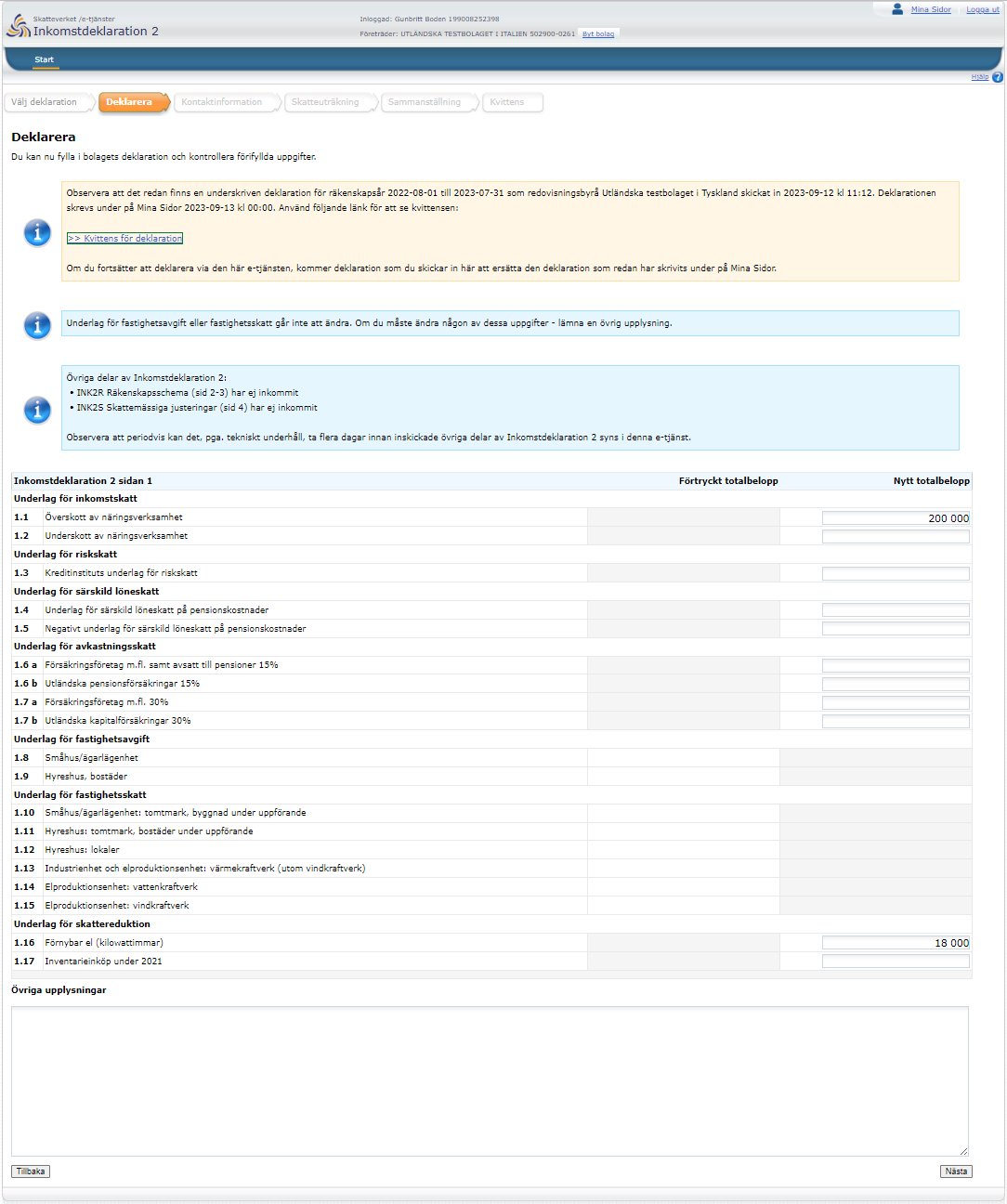
Other information can be provided in the free text field at the bottom of the page.
- Once you have filled in all the information, click “Nästa” (Next).
- If you want to go back to the previous step, click the button ”Tillbaka” (Back).
5. Contact details
On this page you can provide contact details. If you do, your contact details will be visible to all companies and associations you represent. The next time you file a tax return, you can update your contact details if they have changed.
If you as a tax return representative have protected identity, and you provide contact details, case administrators at the Swedish Tax Agency will have access to your details. You will then be contacted in the event of any questions about the company’s or association’s tax return.
Note that providing contact details is voluntary. If you do not provide any contact details, the Swedish Tax Agency will instead contact the company or association the tax return is for.
Note also that if you do not wish to provide contact information, you should remove your prefilled name as well.
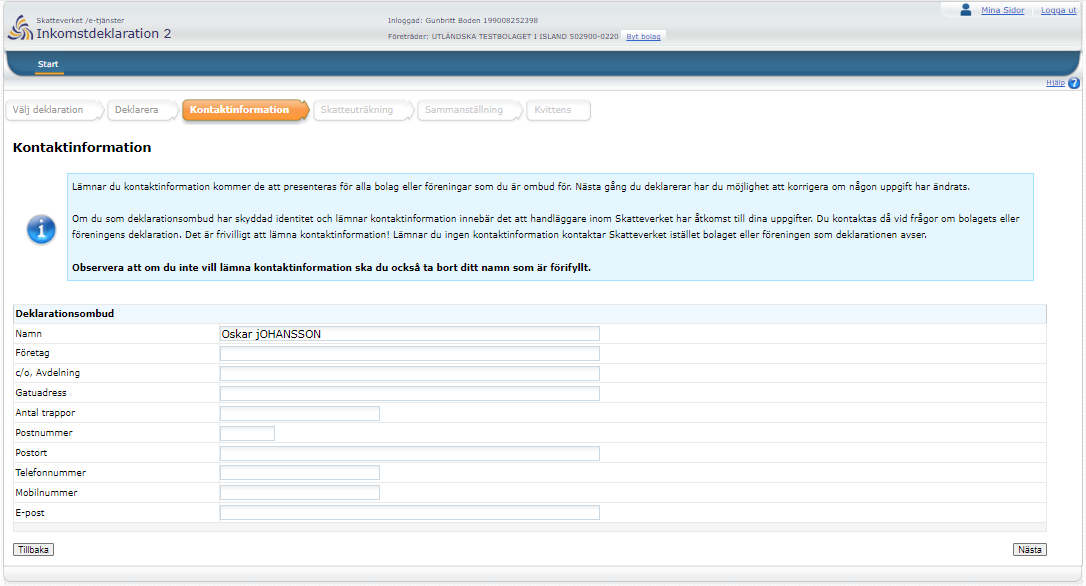
- Click “Nästa" (Next).
- If you want to go back to the previous step, click the button ”Tillbaka” (Back).
6. Tax calculation
- Fill in the amount the company has paid in deducted preliminary tax
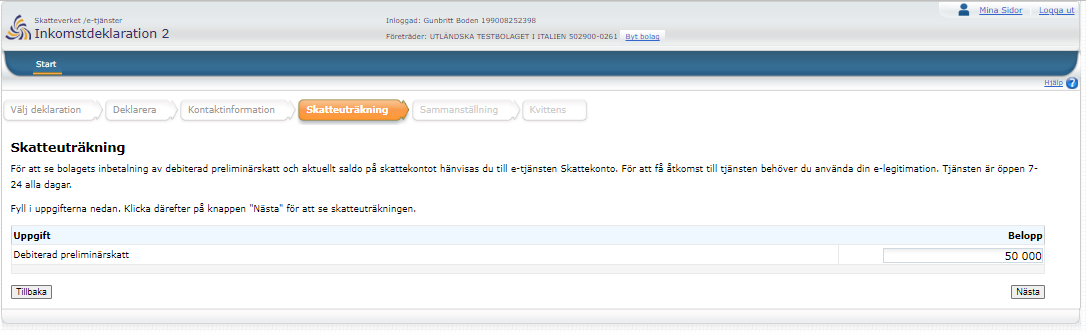
- Click “Nästa” (Next).
- If you want to go back to the previous step, click the button ”Tillbaka” (Back).
See the calculation below for a preliminary tax estimate.
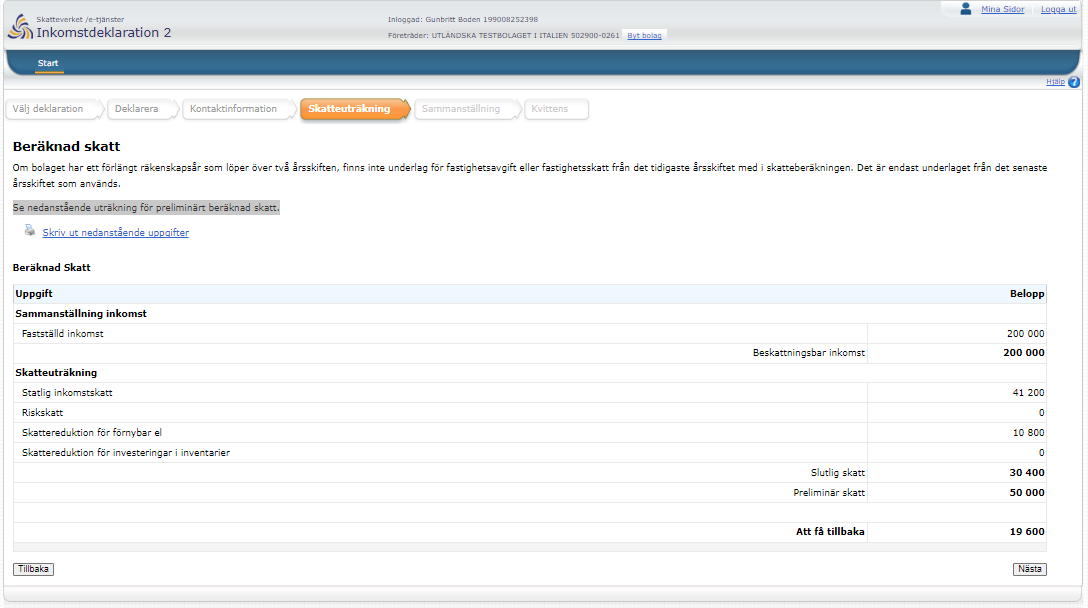
- Click "Nästa" (Next).
- If you want to go back to the previous step, click the button ”Tillbaka” (Back).
7. Summary and receipt
On this page you can see a summary of your tax return.
- Check that the information below is correct before submitting the tax return.
- Once you have checked the information you click the box “Jag har granskat och vill skriva under" (I have reviewed the information and want to sign). Then click the button “Skicka in” (Submit) to sign and submit the tax return.
When you have reviewed and approved your tax return you receive a receipt.
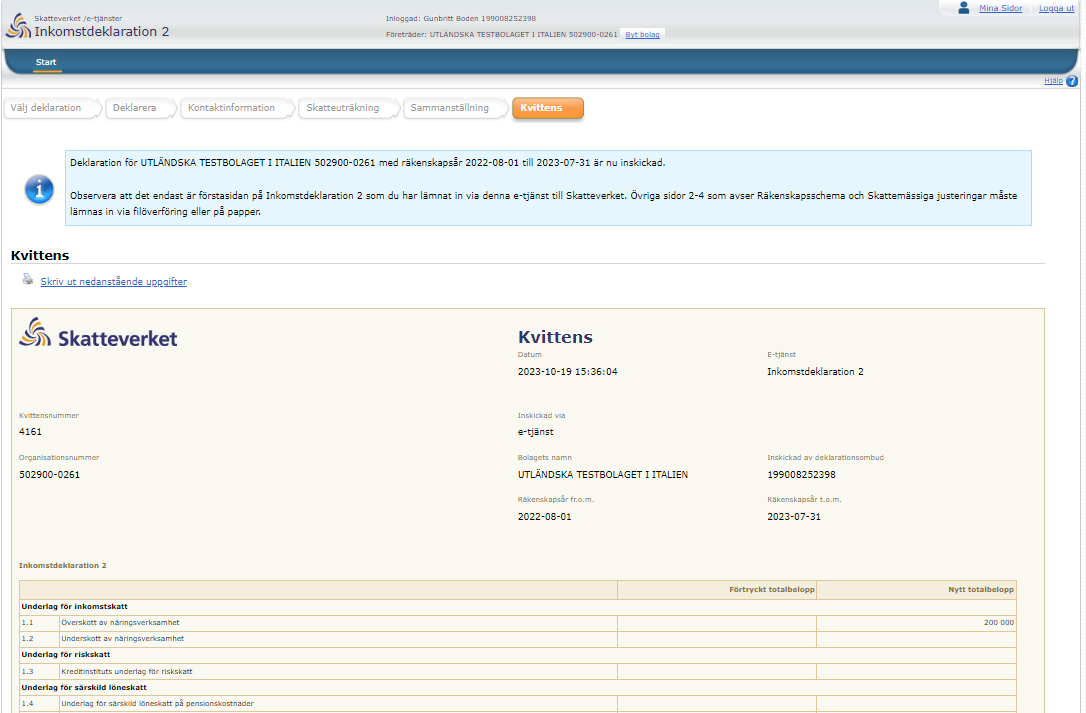
8. Help
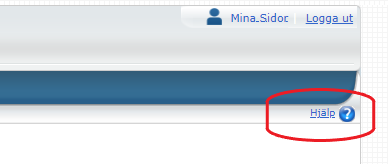
For further instructions in Swedish, click the button "Hjälp" (Help).
9. Logging out
You close the Income Tax Return 2 e-service by clicking “Logga ut” (Log out).